Ever wondered how to replicate a website for your personal learning journey? This guide on How to Clone a Simple Website for Practice is your starting point. We’ll explore the fascinating world of website cloning, a valuable skill for aspiring web developers and designers.
Whether you’re looking to practice your coding skills, understand website structure, or simply experiment with design, cloning a website offers a hands-on approach. This guide breaks down the process into manageable steps, from understanding the basics to setting up a local environment and customizing your cloned website.
Understanding Website Cloning Basics
Cloning a website is a valuable skill for web developers of all levels. It allows you to experiment with website structures, learn from existing designs, and practice your coding abilities without impacting the original website. This section will cover the fundamental concepts of website cloning, its purpose, and the ethical considerations involved.
Website Cloning Definition
Website cloning involves creating a functional copy of an existing website. This copy replicates the original website’s structure, content, and often its design. It is crucial to understand what cloning
is* to distinguish it from other similar processes.
Website cloning is distinct from website migration and website development:* Website Migration: This process involves transferring a website from one hosting environment to another or updating a website’s content management system (CMS). The focus is on moving an existing site, not creating a new copy for practice.
Website Development
This is the process of creating a new website from scratch or significantly altering an existing one. It involves designing the website’s structure, coding the functionality, and creating the content. Cloning, in contrast, starts with an existing site.
Ethical Considerations of Website Cloning
Website cloning, while a useful practice tool, comes with significant ethical considerations. It is essential to understand and adhere to these guidelines to avoid copyright infringement and respect the usage rights of the original website’s creators.The primary ethical concerns revolve around copyright and usage rights. Cloning a website can involve copying copyrighted material, including:* Text: Articles, blog posts, and any other written content.
Images
Photographs, illustrations, and other visual elements.
Code
HTML, CSS, JavaScript, and any other code used to build the website.
Design
The overall layout, visual style, and user interface elements.Using copyrighted material without permission is a violation of copyright law. It is crucial to remember that even if you are cloning a website for personal practice, you should not publish or distribute the cloned website publicly without obtaining the necessary permissions from the original website’s owner.Here are some key ethical guidelines to follow:* Obtain Permission: Always seek explicit permission from the website owner before cloning their site, especially if you intend to use the cloned version for any purpose other than personal practice.
Respect Copyright
Assume all content is copyrighted unless explicitly stated otherwise.
Do Not Claim Ownership
Do not claim ownership of the original website’s content or design.
Use for Practice Only
Limit the use of cloned websites to personal practice and learning. Do not use them for commercial purposes or to mislead users.
Attribution
If you are using the cloned website for educational purposes, consider providing attribution to the original website.Failing to adhere to these ethical guidelines can lead to legal consequences, including lawsuits for copyright infringement.
Choosing a Cloning Method
Now that we understand the basics of website cloning, let’s explore the different methods available to us. The choice of method significantly impacts the ease, accuracy, and time investment required for the cloning process. Understanding these trade-offs is crucial for selecting the most appropriate approach for your practice project.
Comparing Cloning Methods
Several methods exist for cloning a website, each with its own set of advantages and disadvantages. The best choice depends on the complexity of the target website, your technical skills, and your time constraints. We’ll compare three common methods: manual copying, using a website copier tool, and using a website builder’s export/import feature.
To provide a clear comparison, we will use a table to illustrate the strengths and weaknesses of each method.
This table will help you make an informed decision when choosing the best cloning strategy for your project.
| Method | Pros | Cons |
|---|---|---|
| Manual Copying |
|
|
| Website Copier Tool |
|
|
| Website Builder’s Export/Import Feature |
|
|
The table clearly shows the varying degrees of ease of use, accuracy, and time investment associated with each method. Manual copying is the most time-consuming and requires the most technical knowledge, while website copier tools offer a balance of speed and accuracy. Using a website builder’s export/import feature is the easiest, but it is limited by the availability of the export functionality.
File Transfer Protocol (FTP) and Cloning
File Transfer Protocol (FTP) plays a crucial role in many website cloning processes, particularly when using manual copying or website copier tools. FTP is a standard network protocol used for transferring files between a client and a server over a TCP-based network.
Here’s how FTP fits into the cloning process:
- Downloading Website Files: When cloning a website, you often need to download the website’s files from the server where it’s hosted. FTP clients allow you to connect to the server using the website’s FTP credentials (username, password, and hostname) and download the necessary files (HTML, CSS, JavaScript, images, etc.) to your local machine.
- Uploading Cloned Files: After you’ve cloned the website and made any necessary modifications, you’ll likely want to upload the cloned files to a new server (e.g., your local development environment or a different hosting account). FTP clients are used for this purpose as well.
- Website Copier Tools: Many website copier tools utilize FTP behind the scenes to download and upload files. The tool handles the FTP connection and file transfers automatically, simplifying the process for the user.
- Manual Copying with FTP: Even when manually copying a website, FTP is often used to download the files initially. You would use an FTP client to connect to the server and download the files, then manually copy and paste the code or use a text editor to create new files.
In essence, FTP acts as a bridge, facilitating the transfer of website files between the source server and your local machine or a new server where you intend to host the cloned website. Without FTP, accessing and transferring the necessary files for cloning would be significantly more challenging, if not impossible, in many cases. For example, if you were cloning a simple HTML website hosted on a shared hosting account, you would almost certainly use FTP to download the HTML, CSS, and image files.
Manual Cloning Process

Cloning a website manually provides a hands-on learning experience, allowing you to understand the underlying structure of a website. This process involves accessing the source code, downloading essential files, and restructuring them locally. While more time-consuming than automated methods, manual cloning offers valuable insights into web development.
Accessing the Source Code
Understanding how to access the source code is the first step in manually cloning a website. This process involves utilizing the web browser’s built-in developer tools.
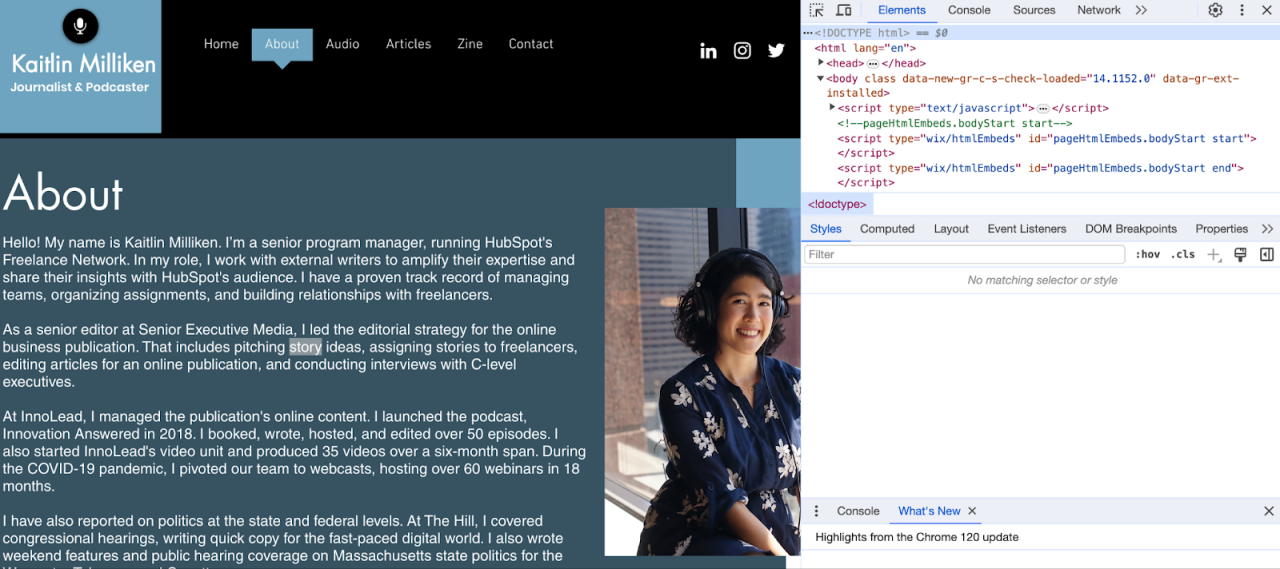
- Using Browser Developer Tools: Most modern web browsers, such as Chrome, Firefox, Safari, and Edge, have built-in developer tools. These tools allow you to inspect the website’s code, including HTML, CSS, and JavaScript. To access these tools, you can typically right-click on the webpage and select “Inspect” or “Inspect Element.” Alternatively, you can use keyboard shortcuts like Ctrl+Shift+I (Windows/Linux) or Cmd+Option+I (macOS).
- Inspecting the HTML Structure: Once the developer tools are open, you’ll see the HTML structure of the webpage. This shows the arrangement of elements, such as headings, paragraphs, images, and links. You can navigate through the HTML to understand how the content is organized.
- Identifying the CSS and JavaScript Files: The developer tools also provide access to the CSS and JavaScript files used by the website. These files are responsible for the website’s styling and functionality, respectively. You can find these files in the “Sources” or “Network” tab of the developer tools.
- Understanding File Paths: Pay attention to the file paths of the CSS, JavaScript, and image files. These paths indicate where the files are located on the website’s server. You’ll need these paths to download the files and replicate the website’s structure locally. For example, a CSS file might be located at `/css/style.css`, and an image might be at `/images/logo.png`.
Downloading HTML, CSS, and JavaScript Files
Downloading the necessary files is crucial for recreating the website locally. This involves saving the HTML, CSS, and JavaScript files from the target website to your computer.
- Downloading HTML Files: Right-click on the webpage and select “Save As…” or “Save Page As…” This will save the HTML file and create a folder containing associated resources, such as images and CSS files. Alternatively, you can copy and paste the HTML code from the “Elements” tab of the developer tools into a text editor and save it as an HTML file (e.g., `index.html`).
- Downloading CSS Files: In the developer tools, navigate to the “Sources” or “Network” tab. Locate the CSS files (usually with a `.css` extension). Right-click on each CSS file and select “Save As…” to download them. Alternatively, you can copy the CSS code from the “Sources” tab and paste it into a text editor, saving it with a `.css` extension (e.g., `style.css`).
- Downloading JavaScript Files: Similarly, locate the JavaScript files (usually with a `.js` extension) in the “Sources” or “Network” tab. Right-click on each JavaScript file and select “Save As…” to download them. You can also copy the JavaScript code and save it with a `.js` extension (e.g., `script.js`).
- Maintaining File Structure: It’s essential to maintain the original file structure when saving the files. This means saving the CSS and JavaScript files in the same folders as they are on the target website. This ensures that the HTML file can correctly reference the CSS and JavaScript files, allowing the website to function properly.
Handling Images and Other Media Files
Images and other media files are essential components of a website’s visual appearance. Downloading these files and ensuring they are correctly referenced in the HTML is crucial for a complete clone.
- Identifying Image URLs: Inspect the HTML code in the developer tools to find the URLs of the images. Images are typically referenced using the `
` tag, and the `src` attribute specifies the image’s URL. For example, `
 `.
`. - Downloading Images: Right-click on each image and select “Save Image As…” to download the image to your computer. Alternatively, you can copy the image URL and paste it into a new browser tab to download the image.
- Downloading Other Media Files: The same process applies to other media files, such as videos and audio files. Identify the URLs of these files in the HTML code and download them using the “Save As…” option.
- Updating File Paths in HTML: After downloading the images and media files, you may need to update the file paths in the HTML code to reflect the local file structure. If the images are saved in a different folder than the HTML file, you’ll need to adjust the `src` attribute of the `
` tags. For example, if the image is saved in an “images” folder, the `src` attribute should be `src=”images/logo.png”`.
- Considering Copyright and Usage Rights: It is crucial to be aware of copyright and usage rights when cloning a website. Ensure you have the necessary permissions to use the images and other media files from the target website. If you are unsure, it’s best to replace the images with your own or use royalty-free images.
Cloning with Website Copier Tools
Website copier tools automate the process of website cloning, making it significantly faster and easier than manual methods. These tools are designed to crawl a website, download its files (HTML, CSS, JavaScript, images, etc.), and recreate its structure locally. This section explores popular tools, installation, configuration, and usage.These tools offer a user-friendly interface, which simplifies the process, especially for beginners.
They handle complexities like relative links and resource dependencies automatically, ensuring a more complete and functional clone.
Popular Website Cloning Tools
There are several website cloning tools available, each with its own strengths and weaknesses. The choice depends on the operating system, the complexity of the website being cloned, and the user’s preferences.
- HTTrack Website Copier: A free and open-source tool available for Windows, Linux, and other platforms. It’s widely used and supports various features, including the ability to update existing clones and download entire websites for offline browsing.
- SiteSucker: A macOS-specific tool that is known for its ease of use and ability to accurately clone websites. It’s particularly well-suited for cloning websites with complex structures.
- WebCopy: A Windows-based tool, also free, offering a good balance of features and ease of use. It allows users to filter content and exclude specific file types.
- wget: A command-line utility available on Linux, macOS, and Windows (via Cygwin or WSL). While less user-friendly than GUI tools, wget is powerful and highly configurable, ideal for experienced users or those needing automation.
Installing and Configuring HTTrack for a Simple Website
Let’s focus on HTTrack as a popular example. The installation process varies slightly depending on the operating system.
- Windows: Download the installer from the official HTTrack website. Run the installer and follow the on-screen instructions. This usually involves accepting the license agreement and choosing an installation directory.
- Linux: HTTrack is often available through the package manager. For example, on Debian/Ubuntu, you can install it by opening a terminal and typing:
sudo apt-get install httrack. On Fedora/CentOS, you might usesudo yum install httrackorsudo dnf install httrack. - macOS: While there isn’t a native macOS package in the same way as for Windows or Linux, HTTrack can be installed using Homebrew, a package manager for macOS. Open Terminal and type:
brew install httrack.
Once installed, launch HTTrack. You’ll typically be greeted with a welcome screen. The first step is to create a new project.
- Enter a project name (e.g., “mywebsiteclone”) and a base path where the cloned website will be saved.
- Click “Next” to proceed to the “Web Address(es)” screen. Here, you’ll enter the URL of the website you want to clone.
- In the “Web Address(es)” field, type the website’s URL (e.g., “http://www.example.com”).
- Click “Next” again.
- On the next screen, you can adjust settings. The defaults are often suitable for a simple website. Click “Finish” to start the cloning process.
Settings and Options in a Typical Website Cloning Tool
Website cloning tools offer a range of settings to control the cloning process. Understanding these options allows for more precise control over the cloned website.
- Project Settings: These settings include the project name, the base path for saving the cloned website, and the category. These are typically set during project creation.
- Web Addresses: This section is where you specify the URL of the website to be cloned. You can add multiple URLs if you need to clone multiple websites or different sections of the same website.
- Scan Rules/Filters: These settings allow you to control which files and directories are downloaded.
- Crawling Options: Control the depth of the crawl (how many levels of links to follow) and the connection speed (to avoid overloading the target server).
- Browser ID: This setting lets you specify the user agent (browser identification) that the tool uses when requesting files from the website.
- Limits: You can set limits on the download speed, the number of connections, and the file size to prevent overwhelming the server.
For example, if you only want to clone the home page and a few linked pages, you might set the “Scan depth” to a low value, such as 1 or 2. If you are cloning a website with many large images, you might increase the “Connection timeout” to ensure all the files download successfully. The “Filters” settings let you exclude specific file types, such as audio or video files, if you don’t need them.
Downloading the Website’s Files with HTTrack
After configuring the settings, the next step is to initiate the download process. In HTTrack, this is typically done by clicking the “Finish” button. The tool will then begin crawling the website, downloading the files, and recreating the directory structure locally.HTTrack provides a progress indicator, displaying the number of files downloaded, the percentage completed, and the estimated time remaining. It also shows the status of each file being downloaded.Once the download is complete, you can open the cloned website by navigating to the base path you specified during project creation and opening the “index.html” file (or the equivalent entry point) in a web browser.For example, if you saved the website to “C:\mywebsiteclone” (Windows) or “/home/user/mywebsiteclone” (Linux/macOS), you would open the “index.html” file from that directory in your browser.
You should see a local copy of the website, complete with its structure and content.
Setting Up a Local Development Environment
Now that you’ve cloned your website, it’s time to set up a local development environment. This is crucial for testing and making changes to your cloned website without affecting the live version. Think of it as a safe sandbox where you can experiment and refine your clone before deploying it publicly. This step is essential for a smooth and efficient development workflow.
Importance of a Local Development Environment
A local development environment offers several key advantages when working with a cloned website. It allows you to experiment freely, test changes without risking the live site, and improve your workflow.
- Risk-Free Testing: A local environment provides a safe space to test new features, changes to the code, or modifications to the design without the risk of breaking the live website. If something goes wrong, only your local copy is affected.
- Faster Development: Working locally often results in faster loading times and quicker feedback loops. This is because the website files are accessed from your computer’s hard drive instead of a remote server.
- Offline Accessibility: You can work on your cloned website even without an internet connection, which is beneficial for development on the go or in areas with limited connectivity.
- Version Control Integration: Local environments seamlessly integrate with version control systems like Git, making it easier to track changes, collaborate with others, and revert to previous versions if needed.
Setting Up a Local Server
To host your cloned website locally, you’ll need to set up a local server. This involves installing software that simulates a web server environment on your computer. Several user-friendly options are available, with XAMPP and MAMP being popular choices.
Let’s focus on setting up XAMPP as an example, but the principles are similar for other tools like MAMP.
- Download and Install XAMPP: Go to the Apache Friends website (apachefriends.org) and download the XAMPP installer for your operating system (Windows, macOS, or Linux). Run the installer and follow the on-screen instructions. Accept the default settings unless you have specific requirements.
- Start the Apache and MySQL Modules: After installation, open the XAMPP control panel. You’ll see a list of modules. Start the Apache module (this is your web server) and the MySQL module (this is your database server, if your website uses one). Click the “Start” buttons next to Apache and MySQL. The status indicators should turn green, indicating that the servers are running.
- Verify Server Functionality: Open your web browser and type “http://localhost” or “127.0.0.1” in the address bar. You should see the XAMPP welcome page. This confirms that your web server is running correctly.
Configuring the Local Server to Host the Cloned Website Files
Once your local server is running, you need to configure it to serve the files of your cloned website. This involves placing the website files in the correct directory and adjusting server settings if necessary.
Here’s how to do it using XAMPP:
- Locate the “htdocs” Folder: The “htdocs” folder is the root directory where your web server looks for website files. In XAMPP, this folder is typically located at:
- Windows: `C:\xampp\htdocs`
- macOS: `/Applications/XAMPP/htdocs`
- Linux: `/opt/lampp/htdocs`
- Copy the Cloned Website Files: Copy all the files and folders of your cloned website into the “htdocs” folder. This includes the HTML files, CSS files, JavaScript files, images, and any other assets.
- Database Configuration (If Applicable): If your cloned website uses a database (e.g., MySQL), you’ll need to import the database.
- Open the XAMPP control panel and start the MySQL module.
- Open phpMyAdmin (usually accessible through `http://localhost/phpmyadmin/` in your browser).
- Create a new database with the same name as the database used by the original website (or update the configuration files in your cloned website to match the new database name).
- Import the database dump file (usually an SQL file) into the newly created database. You might have obtained this dump file during the cloning process.
Making the Cloned Website Accessible Locally
After placing the website files in the “htdocs” folder and configuring the database (if needed), you can access your cloned website locally through your web browser.
- Accessing the Website: Open your web browser and type `http://localhost/` followed by the name of the folder where you placed the cloned website files (if any). For example, if you placed your website files in a folder named “my-cloned-site” inside “htdocs,” you would type `http://localhost/my-cloned-site/` in your browser.
- Troubleshooting: If you encounter any issues, double-check the following:
- Make sure the Apache and MySQL modules (if used) are running in the XAMPP control panel.
- Verify that the website files are correctly placed in the “htdocs” folder.
- Check your browser’s developer tools (usually accessed by pressing F12) for any errors (e.g., broken image links, JavaScript errors).
- If your website uses a database, confirm that the database is correctly imported and the database connection details in your website’s configuration files (e.g., `wp-config.php` for WordPress sites) are correct.
File and Folder Structure and Editing
Now that you’ve cloned your website, it’s time to delve into the core of its functionality: the file and folder structure. Understanding and properly adjusting this structure is crucial for making your cloned website work seamlessly on your local development environment and for customizing it to your liking. This section will guide you through the essential steps of navigating and modifying the cloned website’s files.
Maintaining Original File and Folder Structure
The file and folder structure of a website is its organizational blueprint. Maintaining this structure during the cloning process is incredibly important for several reasons. It ensures that all the relative paths within your website (links to images, CSS files, JavaScript files, and other pages) remain functional. Without a consistent structure, your website’s elements will likely fail to load, and the site will appear broken.
- Relative Paths: Most websites use relative paths to link to resources within the site. For example, an image might be referenced as
<img src="images/logo.png">. This path assumes the “images” folder is located in the same directory as the HTML file. If the folder structure is altered, these paths will break. - CSS and JavaScript Files: Similarly, CSS and JavaScript files are linked using relative paths. Changing the folder structure can prevent these files from being loaded, leading to incorrect styling and broken functionality.
- Server Configuration: Web servers often rely on the file and folder structure to serve files correctly. Altering this structure can disrupt the server’s ability to locate and deliver the website’s content.
- Maintainability: Keeping the original structure makes it easier to understand and manage the website’s files. This simplifies debugging and customization efforts.
Adjusting File Paths and Links
Once you have the cloned website on your local machine, you will probably need to adjust the file paths and links to make them work correctly. The adjustments needed will depend on the structure of the original website and the way you have set up your local development environment.
- Relative Path Review: Begin by carefully reviewing the HTML files for any relative paths used to link to images, CSS, JavaScript, and other resources.
- Local Server Root: Consider the root directory of your local web server. This is the directory where your cloned website files will be stored.
- Path Correction: If the original website used absolute paths (e.g., starting with a domain name), you’ll need to convert them to relative paths. If the paths are already relative, ensure they are correct in relation to the new file locations on your local server.
- Example: If an image path in the original website was
<img src="/images/logo.png">(an absolute path), and your local server’s root is the directory containing your cloned website, change it to<img src="images/logo.png">(a relative path). - Testing: After making changes, thoroughly test the website to ensure all links and resources load correctly. Use your web browser’s developer tools (usually accessed by pressing F12) to identify and troubleshoot any broken links or loading errors. These tools will display error messages and highlight any issues, allowing you to correct the file paths.
Editing HTML, CSS, and JavaScript Files
Customizing the cloned website involves editing its HTML, CSS, and JavaScript files. These files contain the code that structures the content, styles the appearance, and controls the interactive behavior of the website.
- HTML Editing: HTML files define the structure and content of your web pages. You can edit the text, add new elements, modify existing elements, and adjust the overall layout. Use a text editor or code editor to open the HTML files and make your changes.
- CSS Editing: CSS files control the visual appearance of the website. You can modify the colors, fonts, spacing, and other styling properties to customize the look and feel of the site. Locate the CSS files (often in a “css” folder) and open them in your editor to make your changes.
- JavaScript Editing: JavaScript files add interactivity and dynamic behavior to the website. You can modify the existing scripts or add new ones to change how the website responds to user actions, handle data, and provide dynamic content. Locate the JavaScript files (often in a “js” or “scripts” folder) and open them in your editor to make your changes.
- Code Editors: Consider using a code editor such as Visual Studio Code, Sublime Text, or Atom. These editors offer features such as syntax highlighting, auto-completion, and code formatting, which can significantly speed up the editing process and reduce errors.
- Testing and Validation: After making changes, regularly test your website in a web browser to ensure your edits are working as expected and that you have not introduced any errors. Use your browser’s developer tools to check for any JavaScript errors or CSS conflicts.
Addressing Common Issues with Relative Paths
Relative paths are a common source of problems when cloning and customizing websites. Understanding how they work and how to troubleshoot issues is essential.
- Incorrect Path Syntax: Ensure the file paths are correctly formatted. For example, if an image is located in a subfolder called “images,” the path should be
<img src="images/my_image.jpg">. - Missing Files: Verify that all referenced files (images, CSS, JavaScript) are present in the correct locations. If a file is missing, the browser will not be able to load it, and an error will be displayed.
- Case Sensitivity: File paths are often case-sensitive, especially on Linux-based servers. Ensure the file names in the paths match the actual file names exactly.
- Server Configuration: In some cases, the web server configuration might affect how relative paths are resolved. If you are experiencing issues, consult the documentation for your local web server (e.g., Apache, Nginx).
- Example of Relative Path Issues: Let’s say your cloned website’s directory structure looks like this:
  cloned_website/

    index.html

    css/

      style.css

    images/

      logo.png
If the
index.htmlfile contains the following code:<img src="logo.png">, the image will not load because the path is incorrect.The correct path would be
<img src="images/logo.png">.
Database Considerations (If Applicable)
Cloning a website that utilizes a database introduces an extra layer of complexity. The database stores the website’s dynamic content, such as user data, blog posts, product information, and settings. Without the database, the cloned website will likely function incorrectly or display incomplete information. Successfully cloning a database involves exporting it from the live site and importing it into your local development environment.
Steps to Clone a Website with a Database
To clone a website with a database, you’ll need to follow a series of interconnected steps. These steps ensure that the data integrity is maintained throughout the cloning process, leading to a functional local copy of the website.
- Identify the Database Type: Determine the type of database used by the original website (e.g., MySQL, PostgreSQL, MongoDB). This information is usually available in the website’s configuration files (e.g., `wp-config.php` for WordPress) or through the hosting control panel.
- Access the Database: You will need access to the original website’s database, typically through a control panel (like cPanel) or a database management tool (like phpMyAdmin or a command-line interface).
- Export the Database: Export the database from the original website. This creates a backup file containing all the database data. The export process varies depending on the database type and the tool used.
- Create a Database in Your Local Environment: Create a new database in your local development environment with the same name (or a modified name) and user credentials as the original database.
- Import the Database: Import the exported database file into your newly created local database.
- Update Configuration Files: Modify the website’s configuration files (e.g., `wp-config.php`, `config.php`) to point to the local database, including the correct database name, username, password, and host (usually `localhost` or `127.0.0.1`).
- Test the Website: Test the cloned website thoroughly to ensure that the database is connected correctly and that all dynamic content is displayed as expected.
Exporting the Database from the Original Website
Exporting the database is a crucial step in the cloning process, creating a backup of the website’s dynamic content. The method for exporting varies depending on the database system in use. For example, the process is slightly different for MySQL versus PostgreSQL.
- MySQL (using phpMyAdmin): Log in to phpMyAdmin, select the database, and click the “Export” tab. Choose the desired export method (e.g., “Quick” or “Custom”) and format (e.g., SQL). Click “Go” to download the SQL file containing the database data.
- MySQL (using the command line): Use the `mysqldump` command-line tool. For example:
mysqldump -u [username] -p[password] [database_name] > database_backup.sqlReplace `[username]`, `[password]`, and `[database_name]` with the appropriate values. This command creates a SQL file named `database_backup.sql`.
- PostgreSQL (using pgAdmin): Connect to the PostgreSQL server in pgAdmin, right-click on the database, and select “Backup…”. Configure the backup options (e.g., format, filename) and click “Backup”.
- PostgreSQL (using the command line): Use the `pg_dump` command-line tool. For example:
pg_dump -U [username] -d [database_name] > database_backup.sqlReplace `[username]` and `[database_name]` with the appropriate values. This creates a SQL file named `database_backup.sql`.
Importing the Database into the Local Development Environment
Importing the database involves uploading the exported data into your local database. This process ensures that your local website has the same data as the original website. The process is similar to the export process, but in reverse.
- MySQL (using phpMyAdmin): In phpMyAdmin, select the database you created in your local environment. Click the “Import” tab. Browse and select the SQL file you exported earlier. Click “Go” to import the data.
- MySQL (using the command line): Use the `mysql` command-line tool. For example:
mysql -u [username] -p[password] [database_name] < database_backup.sqlReplace `[username]`, `[password]`, and `[database_name]` with the appropriate values. This command imports the data from `database_backup.sql` into the local database.
- PostgreSQL (using pgAdmin): Connect to your local PostgreSQL server in pgAdmin. Right-click on the database you created and select "Restore...". Specify the backup file you created during the export process and configure the restore options. Click "Restore".
- PostgreSQL (using the command line): Use the `psql` command-line tool. For example:
psql -U [username] -d [database_name] < database_backup.sqlReplace `[username]` and `[database_name]` with the appropriate values. This command imports the data from `database_backup.sql` into the local database.
Potential Compatibility Issues and Resolutions
During the database import process, and when running the cloned website, you might encounter compatibility issues. Addressing these issues ensures that your local website functions correctly.
- Database Version Compatibility: Ensure that your local database server (e.g., MySQL, PostgreSQL) version is compatible with the database version used by the original website. If there's a significant version difference, you might experience errors.
Resolution: Update your local database server to a version compatible with the original website's database, or downgrade the original website's database if possible and safe to do so.
Consider researching the compatibility matrix for the specific database system. For example, MySQL versions often have backward compatibility, but major version jumps can introduce breaking changes.
- Character Encoding Issues: Incorrect character encoding can lead to garbled text or missing characters. This often occurs if the database character set and collation are not set correctly.
Resolution: During the database import, ensure that the database and tables are created with the correct character set and collation. UTF-8 (utf8mb4 for MySQL to support full Unicode) is generally recommended for modern websites.
Check the original website's database settings and replicate them in your local environment. You might need to modify the SQL file before importing to specify the correct character set and collation.
- Database User Permissions: The database user in your local environment might not have the necessary permissions to access and modify the database.
Resolution: Grant the appropriate permissions (e.g., SELECT, INSERT, UPDATE, DELETE, CREATE, ALTER) to the database user in your local environment. This can be done through your database management tool (e.g., phpMyAdmin, pgAdmin) or the command line.
- Database Table Prefix: Some websites, especially those using content management systems (CMS) like WordPress, use a table prefix (e.g., `wp_`). If the original website and your local environment have different table prefixes, you might encounter errors.
Resolution: If you change the table prefix, you'll need to update the website's configuration files to reflect the change. Also, you may need to modify the SQL file during the import process to replace the original table prefix with the new one.
Consider a find-and-replace operation within the SQL file using a text editor before importing.
- File Paths in the Database: Websites often store file paths (e.g., for images, videos) in the database. If these paths are absolute (e.g., `/var/www/html/website/images/`), they will be incorrect in your local environment.
Resolution: After importing the database, perform a find-and-replace operation within the database (using SQL queries or a database management tool) to update the file paths to point to the correct locations in your local environment (e.g., `/path/to/local/website/images/`).
Testing and Troubleshooting
Thoroughly testing your cloned website is absolutely crucial. It's the final step that ensures your practice clone functions correctly and replicates the original website's features. Skipping this stage can lead to a frustrating experience, as you might miss critical errors that prevent the site from working as intended. Remember, the goal is to learn and understand, and a functional clone is the best way to achieve that.
Importance of Testing the Cloned Website
Comprehensive testing is vital to guarantee the successful replication of the original website's functionality and appearance. It helps identify and rectify errors that may have occurred during the cloning process, such as broken links, missing images, or incorrect database connections. By meticulously testing, you ensure the cloned site behaves as expected and allows you to practice your skills effectively. The time invested in testing is a direct investment in your learning.
Common Issues to Check After Cloning
After cloning a website, several common issues can arise. These issues need to be addressed to ensure the clone functions properly.
- Broken Links: Links that lead to non-existent pages, often indicated by "404 Not Found" errors. These can be internal links within the site or external links pointing to resources on the original website that haven't been cloned.
- Missing Images: Images that don't display, showing broken image icons or placeholder text. This can happen if the image paths in the HTML are incorrect or if the images weren't successfully copied during the cloning process.
- Functionality Errors: Features that don't work as expected, such as contact forms that fail to submit, search functions that return no results, or interactive elements that are unresponsive.
- CSS and JavaScript Issues: Incorrect styling or broken functionality due to errors in CSS or JavaScript files. This can manifest as layout problems, incorrect formatting, or features that don't function properly.
- Database Connection Problems: If the website uses a database, errors can occur if the connection details (host, username, password, database name) are incorrect or the database hasn't been properly cloned or configured.
- Relative Path Issues: Problems with how the website's files are linked together, especially if the directory structure is different on the cloned site. This can affect image loading, CSS application, and JavaScript execution.
- Security Vulnerabilities: If the original website had security vulnerabilities, these could be transferred to the clone. It's important to be aware of this and take precautions, especially if the cloned site will be accessible online.
Troubleshooting Common Cloning Problems
When encountering problems during the cloning process, employing systematic troubleshooting techniques is essential. Here are some tips to resolve common issues:
- Broken Links: Check the HTML code for incorrect URLs. Verify that the linked pages or resources exist in the cloned website's file structure. Use a link checker tool to identify and fix broken links automatically.
- Missing Images: Ensure that the image files have been copied to the correct location in the cloned website's file structure. Double-check the image paths in the HTML code to ensure they match the file locations.
- Functionality Errors: Inspect the website's code (HTML, CSS, JavaScript) for errors. Review server-side scripts (e.g., PHP, Python) to verify that they are functioning correctly and configured with the correct database connection details.
- CSS and JavaScript Issues: Examine the browser's developer console for error messages related to CSS or JavaScript files. Check the file paths in the HTML code and ensure that the files have been copied to the correct locations.
- Database Connection Problems: Verify the database connection details (host, username, password, database name) in the website's configuration files. Ensure the database has been correctly cloned and that the cloned website has access to it.
- Relative Path Issues: Adjust relative paths in the HTML, CSS, and JavaScript files to match the new directory structure of the cloned website.
Using Browser Developer Tools to Debug the Cloned Website
Browser developer tools are invaluable for debugging websites. They provide a wealth of information about the website's structure, code, and performance.
- Accessing Developer Tools: Most browsers (Chrome, Firefox, Safari, Edge) have built-in developer tools. You can usually access them by right-clicking on a webpage and selecting "Inspect" or "Inspect Element," or by using keyboard shortcuts like Ctrl+Shift+I (Windows/Linux) or Cmd+Option+I (Mac).
- Inspecting HTML and CSS: The "Elements" or "Inspector" panel allows you to examine the HTML structure of the webpage. You can view the HTML code, see how CSS styles are applied, and make temporary changes to the code to test different styling options. For example, if a specific element's color is incorrect, you can select the element in the Elements panel and inspect the CSS rules applied to it.
Then, you can identify the CSS rule responsible for the color and adjust it to see if it fixes the issue.
- Monitoring Network Activity: The "Network" panel shows all the network requests made by the webpage, including requests for HTML, CSS, JavaScript, images, and data. You can see the status codes (e.g., 200 OK, 404 Not Found), response times, and sizes of the requested resources. This is particularly useful for identifying broken links, missing images, and slow-loading resources. If an image is not loading, you can use the Network panel to see if the browser is successfully requesting the image file.
If the status code is 404, it means the image file cannot be found at the specified URL.
- Debugging JavaScript: The "Console" panel displays error messages, warnings, and output from JavaScript code. It's essential for debugging JavaScript errors, as it provides information about what went wrong and where. You can also use the Console to log variables and values to the console to track the flow of execution and understand how the code is behaving. For instance, if a JavaScript function is not working correctly, you can add `console.log()` statements within the function to print the values of variables at different points in the code.
This helps you identify the source of the error.
- Using the "Sources" Panel: The "Sources" panel allows you to view and edit the website's source code (HTML, CSS, JavaScript) directly within the browser. You can set breakpoints in JavaScript code to pause execution and step through the code line by line, examining the values of variables and understanding how the code works. This is particularly helpful for debugging complex JavaScript logic. For example, if a JavaScript function is not working as expected, you can open the function's source code in the Sources panel, set a breakpoint at the beginning of the function, and then step through the code line by line.
This allows you to observe the values of variables and identify the point where the code is going wrong.
Website Design and Customization
Now that you have a cloned website, the real fun begins: making it your own! This section focuses on customizing the design and content of your cloned website, transforming it from a copy into a unique project. You'll learn how to modify the HTML and CSS to change the visual appearance and how to replace content to create a fresh experience for visitors.
Customizing the Website's Design with HTML and CSS
The foundation of any website's design is HTML and CSS. HTML structures the content, while CSS styles it. Understanding how these two work together is key to customizing your cloned website.To modify the design, you'll need to:* Locate the CSS files: These files usually have a `.css` extension and are often located in a "css" or "styles" folder within your website's file structure.* Identify the CSS selectors: CSS selectors target specific HTML elements.
Common selectors include:
`element`
Selects all instances of a specific HTML element (e.g., `p` for all paragraphs).
`.class`
Selects elements with a specific class attribute (e.g., `.heading`).
`#id`
Selects an element with a specific ID attribute (e.g., `#main-content`).* Modify CSS properties: Within a CSS rule, you'll change properties like `color`, `font-size`, `background-color`, `margin`, and `padding` to alter the appearance of the selected elements.* Edit the HTML: Sometimes, you'll need to adjust the HTML structure to accommodate your design changes. This might involve adding, removing, or modifying HTML tags and attributes.For example, to change the color of all headings on your website, you would:
- Open the relevant CSS file.
- Find the CSS rule for headings (e.g., `h1`, `h2`, `h3`).
3. Add or modify the `color` property within the rule
```css h1, h2, h3 color: blue; /* Change heading color to blue - / ```This simple change will immediately update the color of all heading elements across your website. Remember to save the CSS file after making changes.
Modifying the Website's Content to Make It Unique
Changing the content is essential to differentiate your cloned website. This involves replacing text, images, and potentially other multimedia elements with your own.Here's how to approach content modification:* Identify the content to be changed: Carefully review each page of your cloned website and identify the text, images, and other elements that need to be replaced.
Locate the corresponding HTML elements
Use your knowledge of HTML structure to find the specific tags and attributes that contain the content you want to change.
Edit the text
Simply replace the existing text within the HTML tags with your new content.
Replace images
Locate the ` ` tags that display the images. You'll need to upload your new images to your website's file structure and update the `src` attribute of the `
` tag to point to the new image's file path.
Consider other media
If your website uses videos, audio, or other multimedia elements, you'll need to update the corresponding tags (e.g., `
Changing the Website's Images and Text
Let's dive deeper into the practical aspects of changing images and text.* Changing Text: To change text, you'll directly edit the HTML files. For instance, if you want to change the welcome message on the homepage, you would: 1. Open the `index.html` (or the homepage file) in your code editor. 2.
Locate the paragraph containing the welcome message. 3. Replace the existing text with your desired message. 4. Save the `index.html` file.
The changes will be immediately visible when you refresh the homepage in your browser.* Changing Images: Changing images involves two steps: uploading your new image and updating the ` ` tag.
1. Upload the Image
Use your FTP client or file manager to upload the new image to your website's file structure. A common practice is to place images in an "images" folder.
2. Update the `` Tag
Locate the ` ` tag in the HTML file where the image is displayed. Modify the `src` attribute to point to the new image's file path. For example, if the original image path was `images/original-image.jpg` and you uploaded your new image as `images/my-new-image.jpg`, you would change the `src` attribute to `src="images/my-new-image.jpg"`. Save the HTML file, and the new image will now be displayed.
Visual Representation of Editing an Element
Let's illustrate how to edit a specific element using blockquotes.Imagine you want to change the text and style of a blockquote on your website. The original HTML might look like this:```html
This is a sample quote from the original website.
Original Author
```Here's how you would modify this:* HTML Modification: You would edit the text within the `
` tag and the ` ` tag to your desired content:
```html
This is my new and improved quote.
Your Name
```* CSS Modification (Example): You could also change the visual appearance of the blockquote using CSS. For instance, you might want to change the font style and add a border. You'd find the `.quote` class in your CSS file and modify it. ```css .quote font-style: italic; border-left: 5px solid #ccc; padding-left: 10px; ```* Visual Summary (in blockquotes):
Original HTML:
<blockquote class="quote">
<p>This is a sample quote from the original website.</p>
<cite>Original Author</cite>
</blockquote>
Modified HTML:
<blockquote class="quote">
<p>This is my new and improved quote.</p>
<cite>Your Name</cite>
</blockquote>
Modified CSS:
.quote
font-style: italic;
border-left: 5px solid #ccc;
padding-left: 10px;
This demonstrates how you can change both the content and the visual presentation of a specific element, making your cloned website truly unique. Remember to test your changes in your browser after each modification to ensure they look and function as expected.
Legal and Ethical Considerations Recap
Cloning a website, even for practice, involves navigating a complex landscape of legal and ethical considerations. It's crucial to understand these issues to avoid potential pitfalls and ensure responsible web development practices. This section summarizes the main points to keep in mind.
Summarizing Legal and Ethical Issues
The act of cloning a website brings forth several significant legal and ethical dilemmas. These issues revolve around copyright, intellectual property rights, and the potential for misuse. Ignoring these aspects can lead to serious consequences, including legal action and damage to one's reputation.
Appropriate and Inappropriate Uses
Understanding the difference between ethical and unethical uses of website cloning is paramount. Using cloning for practice is acceptable if done responsibly, while misuse can have significant legal ramifications.
- Appropriate Uses: Cloning a website for personal learning and development is acceptable. This includes practicing HTML, CSS, and JavaScript skills, experimenting with different design layouts, and understanding how websites are structured. It is crucial to remember that the cloned site should not be made public or used for commercial purposes. This approach is like practicing a musical piece without performing it for an audience or selling it.
- Inappropriate Uses: Unauthorized commercial use of a cloned website, such as replicating the site and making money from it, is unethical and illegal. Pretending to be the original website or creating a look-alike to deceive users also falls into this category. Distributing a cloned website without permission or using it to host malicious content are other examples of inappropriate uses. This can be equated to counterfeiting a product and selling it as the original, leading to legal action.
Avoiding Copyright Infringement and Respecting Intellectual Property
Copyright infringement and disrespecting intellectual property rights are major concerns when cloning a website. Adhering to legal guidelines and ethical standards is essential to avoid these issues.
The core of copyright law protects original works of authorship, including websites. This protection covers text, images, code, and other creative elements. Cloning a website, especially if it involves copying these elements without permission, can violate copyright laws.
To avoid copyright infringement:
- Obtain Permission: Always seek explicit permission from the website owner before cloning any part of their site. This is especially important if you intend to use the cloned website for any purpose other than strictly personal practice.
- Use Your Own Content: When cloning for practice, replace the original content (text, images, videos, etc.) with your own. This avoids directly copying copyrighted material.
- Respect the Original Design: While you can study the original website's design, avoid replicating it exactly. This can lead to accusations of intellectual property theft.
- Credit the Source (When Appropriate): If you are using the cloned website as a portfolio piece, it is good practice to credit the original website and state that it is a practice project.
- Be Aware of Licensing: Some websites may use open-source licenses for their code or content. Familiarize yourself with these licenses and adhere to their terms if you intend to use any of the code or content.
Failing to respect intellectual property rights can lead to severe legal consequences, including lawsuits, fines, and reputational damage. For example, in 2016, the US Supreme Court case
-Star Athletica, LLC v. Varsity Brands, Inc.* clarified that copyright protection extends to the visual features of a design if those features can be identified separately from the utilitarian aspects of the object.
This ruling highlights the importance of respecting the design elements of a website.
The core principle is to use cloning as a learning tool, not as a means to steal or misappropriate someone else's work. Always prioritize ethical behavior and respect for intellectual property rights.
Closure
In conclusion, cloning a simple website for practice is a powerful way to learn and experiment. By understanding the methods, processes, and ethical considerations, you can safely and effectively replicate websites to enhance your web development skills. Remember to respect copyright and intellectual property, and enjoy the learning process!