Embark on a journey into the world of automation! “How to Automate a Simple Task with a Script” unveils the power of automating repetitive chores, freeing up your time and boosting efficiency. This guide will transform you from a manual worker to a scripting wizard, empowering you to conquer tedious tasks with elegant code.
We’ll start with the fundamentals, exploring the benefits of automation and identifying tasks ripe for the picking. Then, we’ll dive into scripting languages, setting up your development environment, and mastering essential concepts. Prepare to witness the magic of transforming manual processes into automated routines.
Introduction: Defining Task Automation

Task automation involves using technology to perform tasks with minimal human intervention. This often involves writing scripts or using software to execute repetitive actions, saving time and reducing the potential for human error.Automating simple tasks offers several key advantages.
Benefits of Automating Simple Tasks
Automating tasks offers a range of benefits that can significantly improve efficiency and productivity. Here are some of the most significant advantages:
- Increased Efficiency: Automation allows tasks to be completed much faster than manual execution. For example, a data entry task that takes an hour manually could be completed in minutes with a script.
- Reduced Errors: Automated processes are less prone to errors caused by human fatigue or mistakes. This leads to more reliable results and higher quality output.
- Time Savings: Automating repetitive tasks frees up valuable time for more complex and strategic activities. This can significantly boost overall productivity.
- Cost Reduction: While there may be an initial investment in setting up automation, it can lead to long-term cost savings by reducing the need for manual labor and minimizing errors that lead to rework.
- Improved Consistency: Automated processes ensure consistency in execution, leading to predictable outcomes every time. This is particularly important in processes where accuracy is crucial.
Common Types of Tasks Suitable for Automation
Several types of simple tasks are well-suited for automation. These tasks are typically repetitive, rule-based, and involve little to no judgment. Here are some examples:
- File Management: Tasks such as renaming files, moving files between folders, and backing up data can be easily automated. For instance, a script can be created to automatically back up all documents to a cloud storage service every day at midnight.
- Data Entry: Entering data into spreadsheets or databases, especially when the data comes from a consistent source, is a prime candidate for automation. An example would be importing customer data from a CSV file into a CRM system.
- Email Management: Tasks like sending automated replies, filtering emails, and archiving old messages can be automated to save time and organize communication.
- Report Generation: Creating basic reports from data sources, such as sales figures or website traffic, can be automated to provide up-to-date information quickly.
- System Monitoring: Monitoring system resources, such as CPU usage and disk space, can be automated to proactively identify potential issues.
Choosing a Scripting Language
Selecting the right scripting language is a crucial step in automating any task. The choice directly impacts the script’s efficiency, readability, and maintainability. Understanding the strengths and weaknesses of different languages, along with the specific requirements of your automation project, is essential for making an informed decision.Scripting languages offer a powerful means of automating repetitive tasks, streamlining workflows, and enhancing productivity.
This section delves into the popular options available, providing a comparative analysis to guide your selection process.
Popular Scripting Languages
Several scripting languages are widely used for automation, each with its unique characteristics. The most popular choices include Python, Bash, and PowerShell.
- Python: A versatile, high-level language known for its readability and extensive libraries.
- Bash: The default shell scripting language on most Linux and macOS systems, powerful for system administration and command-line tasks.
- PowerShell: Microsoft’s task automation and configuration management framework, designed for Windows environments.
Comparing Scripting Languages
A comparative analysis helps to evaluate the suitability of each language for different automation scenarios. This comparison is presented in a table format to facilitate easy understanding.
| Language | Advantages | Disadvantages |
|---|---|---|
| Python |
|
|
| Bash |
|
|
| PowerShell |
|
|
Selecting the Right Language
The selection process involves evaluating the project’s requirements against the strengths and weaknesses of each language. This process can be structured to ensure an appropriate choice.
- Define the Task: Clearly identify the task(s) to be automated. What are the inputs, outputs, and specific actions required?
- Assess the Environment: Determine the operating system(s) where the script will run. Will it be on Windows, macOS, Linux, or a combination?
- Consider Dependencies: Does the task require specific libraries or frameworks? If so, consider the availability and ease of installation of these dependencies in each language.
- Evaluate Complexity: How complex is the task? Python is often preferred for complex tasks due to its readability and extensive libraries. Bash is often more suitable for simple system administration tasks. PowerShell excels in managing Windows-specific functionalities.
- Prioritize Existing Skills: Leverage existing knowledge and expertise. If you are already proficient in a language, it might be the most efficient choice, even if another language might technically be a better fit.
- Evaluate Performance Needs: Does the task require high performance? While Python is generally slower than Bash or PowerShell for some tasks, the performance difference may be negligible for many automation scripts.
- Community and Support: Consider the availability of online resources, documentation, and community support for each language. A large and active community can be invaluable for troubleshooting and learning.
By systematically considering these factors, you can choose the scripting language that best suits your automation needs, leading to a more efficient and maintainable script. For example, automating a web scraping task on a Linux server would likely benefit from Python due to its libraries and cross-platform capabilities. Automating file management on a Windows server would benefit from PowerShell’s built-in features.
Setting Up the Environment
Now that we’ve chosen our scripting language, the next crucial step is setting up the environment where we’ll write, test, and run our scripts. This involves installing the necessary software, configuring our development environment, and ensuring everything works seamlessly. This ensures we can focus on the task automation itself.
Necessary Software and Tools
The specific software and tools needed depend on the scripting language you’ve selected. However, some general categories of software are almost always required.For instance, if you’ve chosen Python, you’ll need the Python interpreter, a code editor or IDE (Integrated Development Environment), and potentially a package manager like `pip` to install libraries. Similarly, if you’re using Bash, you’ll need a terminal or shell environment.Here’s a breakdown:* Scripting Language Interpreter/Runtime: This is the core software that executes your script.
For Python, this is the Python interpreter. For Bash, it’s the Bash shell itself. For JavaScript (if running outside a browser, e.g., with Node.js), it’s the Node.js runtime.
Code Editor or IDE
A text editor or IDE is where you’ll write your script. IDEs often provide features like syntax highlighting, code completion, debugging tools, and project management. Popular choices include Visual Studio Code, Sublime Text, Atom, PyCharm (for Python), and others.
Package Manager (Optional but Highly Recommended)
Package managers simplify the process of installing and managing external libraries or modules that your script might depend on. Examples include `pip` (for Python), `npm` (for JavaScript with Node.js), and `apt` or `yum` (for installing system-level dependencies in Linux).
Terminal or Command-Line Interface (CLI)
You’ll need a terminal to run your scripts and interact with your operating system. This is typically a built-in feature of your operating system (e.g., Terminal on macOS, Command Prompt or PowerShell on Windows, and various terminal emulators on Linux).
Version Control System (Recommended)
While not strictly required, using a version control system like Git is highly recommended for managing your code, tracking changes, and collaborating with others.
Installing the Scripting Language and Dependencies
The installation process varies depending on your operating system and the scripting language. Let’s use Python as an example to illustrate the general steps.
1. Downloading the Installer
Visit the official Python website (python.org) and download the installer for your operating system (Windows, macOS, or Linux).
2. Running the Installer
Windows
Double-click the downloaded installer. Make sure to check the box that says “Add Python to PATH” during the installation process. This is crucial for running Python from your command line.
macOS
Double-click the installer and follow the on-screen instructions. Python is often pre-installed on macOS, but you may need to install the latest version.
Linux
Python is usually pre-installed. If not, use your distribution’s package manager (e.g., `apt` for Debian/Ubuntu, `yum` or `dnf` for Fedora/CentOS/RHEL) to install it. For example, in Ubuntu, you’d typically run `sudo apt update` followed by `sudo apt install python3` and `sudo apt install python3-pip`.
3. Verifying the Installation
Open your terminal or command prompt and type `python –version` or `python3 –version` (depending on your system). You should see the Python version number displayed. This confirms that Python is installed correctly.
4. Installing Dependencies (using `pip`)
`pip` is the package manager for Python. To install a library, use the command `pip install
If you are using Python3, you might need to use `pip3 install
`
For Bash, the installation is typically already handled by your operating system. You can check its version by typing `bash –version` in your terminal. If it’s not installed (rare), you can install it through your package manager.
Configuring the Development Environment
Once the scripting language and dependencies are installed, you’ll need to configure your development environment for writing and running scripts. This involves choosing a code editor or IDE, setting up the necessary configurations, and understanding how to execute your scripts.
1. Choosing a Code Editor or IDE
Select a code editor or IDE that suits your needs. Consider features like syntax highlighting, code completion, debugging tools, and project management capabilities. Visual Studio Code (VS Code) is a popular and versatile choice that supports numerous languages through extensions. PyCharm is a dedicated IDE for Python, offering advanced features for Python development. Sublime Text and Atom are other well-regarded editors.
2. Configuring the Editor/IDE
Syntax Highlighting
Most editors automatically detect the file type (e.g., `.py` for Python, `.sh` for Bash, `.js` for JavaScript) and apply syntax highlighting. If not, configure the editor to recognize the language.
Code Completion and IntelliSense
Many editors provide code completion, which suggests code as you type. Some IDEs offer IntelliSense, which provides more advanced features like parameter hints and error detection. Install the necessary extensions or plugins for your chosen language.
Linters and Formatters
Linters analyze your code for style and potential errors. Formatters automatically format your code according to a specific style guide (e.g., PEP 8 for Python). Install and configure linters and formatters for your language. For example, in VS Code, you can install the `Pylint` extension for Python.
Debugging Tools
IDEs often include debugging tools that allow you to step through your code, inspect variables, and identify errors. Learn how to use the debugger in your chosen editor or IDE.
3. Running Scripts
From the Terminal
Open your terminal or command prompt. Navigate to the directory where your script is saved using the `cd` command. Then, execute the script using the appropriate command. For example:
Python
`python your_script.py` or `python3 your_script.py`
Bash
`bash your_script.sh` or `./your_script.sh` (if the script has execute permissions)
JavaScript (with Node.js)
`node your_script.js`
From the Editor/IDE
Most editors and IDEs have built-in functionality to run your scripts directly. This often involves a “Run” button or a keyboard shortcut. Consult your editor’s documentation for specific instructions.By setting up and configuring your development environment correctly, you’ll create a streamlined and efficient workflow, allowing you to focus on writing the automation script itself. This is important for reducing errors and improving your productivity.
Task Selection and Analysis
Choosing the right task to automate is crucial for a successful scripting project. A well-selected task saves time and effort, demonstrating the practical benefits of automation. Effective task analysis ensures that all steps are understood and accounted for, preventing errors and streamlining the automation process.
Selecting a Simple, Repetitive Task
The ideal task for automation is one that is simple, repetitive, and time-consuming. These tasks are often prone to human error and can significantly benefit from automation. The goal is to find tasks where a script can perform the same steps consistently and accurately, freeing up your time for more complex activities. Consider tasks you perform regularly that involve little to no decision-making.
Analyzing the Chosen Task
Task analysis involves breaking down the chosen task into its individual steps. This detailed breakdown is essential for writing an effective script. It helps you understand the sequence of actions, identify any dependencies, and determine the inputs and outputs of each step. The more detailed your analysis, the smoother the scripting process will be.
Illustrative Task Analysis: Renaming Multiple Files
Consider the task of renaming a batch of files. This is a common and often tedious task that’s ideal for automation.To analyze the task, we can break it down into the following steps:
- Identify the files to be renamed: This involves determining the location of the files and possibly filtering them based on criteria like file extension or name pattern.
- Determine the new naming convention: Decide on the format for the new file names. This might involve adding a prefix, a suffix, a date, or a sequential number.
- Read each file’s original name: The script needs to access the existing names of the files.
- Generate the new file name: Using the defined naming convention, the script constructs the new name for each file.
- Rename each file: The script executes the renaming operation, updating the file system with the new names.
- Handle potential errors: The script should include error handling, such as checking for existing file names or permissions issues.
For instance, imagine renaming a series of image files. Let’s say we have files named “image_001.jpg”, “image_002.jpg”, and so on, and we want to add a date prefix to them, such as “2024-07-26_image_001.jpg”.In this scenario:
- The script would first locate all “.jpg” files in a specified directory.
- It would then use the current date (2024-07-26) to create the prefix.
- For each file, the script would extract the original file name, such as “image_001.jpg”.
- The script would then combine the date prefix with the original name to generate the new name: “2024-07-26_image_001.jpg”.
- Finally, the script would rename each file using the new name.
This detailed analysis helps to visualize the whole process.
Scripting the Automation
Now that you’ve defined your task, chosen your language, and set up your environment, it’s time to get your hands dirty and start scripting! This section will cover the fundamental building blocks of scripting, providing you with the essential knowledge to start automating your tasks. We’ll break down the core concepts and show you how they translate into practical code.
Basic Scripting Concepts
Scripting, at its heart, involves giving a computer a set of instructions. These instructions are organized in a specific order, telling the computer what to do, step by step. Understanding the following concepts is crucial for writing effective scripts.
- Variables: Variables are like labeled containers that store data. They hold information that your script can use and manipulate. Think of them as placeholders for values that can change during the script’s execution. For example, you might use a variable to store a filename, a number of items, or a user’s input.
- Data Types: Data types define the kind of information a variable can hold. Common data types include:
- Strings: Text, enclosed in quotes (e.g., “Hello, world!”).
- Numbers: Whole numbers (integers, like 10) and numbers with decimal points (floats, like 3.14).
- Booleans: True or False values.
- Lists/Arrays: Ordered collections of items (e.g., a list of filenames).
- Control Structures: Control structures dictate the flow of execution in your script. They allow you to make decisions (e.g., “if this condition is true, do this”) and repeat actions (e.g., “do this action multiple times”). Key control structures include:
- Conditional Statements (if/else): Execute code blocks based on whether a condition is true or false.
- Loops (for/while): Repeat a block of code multiple times.
Basic Syntax Examples
Let’s look at some basic syntax examples in Python, a popular and beginner-friendly scripting language.
Variables:
In Python, you assign a value to a variable using the equals sign (=).
filename = "my_file.txt"
item_count = 5
is_active = True
Data Types:
Python automatically infers the data type based on the assigned value.
message = "Hello, Scripting!" # String
age = 30 # Integer
price = 25.50 # Float
is_valid = False # Boolean
Conditional Statements (if/else):
The if statement checks a condition, and if it’s true, it executes the code within its block. The else statement provides an alternative code block to execute if the condition is false.
if item_count > 0:
print("Items are available.")
else:
print("No items found.")
Loops (for):
The for loop iterates over a sequence (like a list or a range of numbers).
for i in range(5): # Iterate from 0 to 4
print(i)
Loops (while):
The while loop continues to execute a block of code as long as a condition is true.
count = 0
while count < 3:
print("Count:", count)
count += 1 # Increment the counter
Comments and Readability
Comments are notes within your script that are ignored by the computer. They are essential for making your code understandable to yourself and others. They explain what the code does, why it’s written a certain way, or any other relevant information.
Here’s how to add comments in Python:
# This is a single-line comment
variable = 10 # Assign the value 10 to the variable
# This is a multi-line comment.
# It can span multiple lines.
# It's useful for explaining complex logic.
Scripting the Automation: Implementation

Now that you have a clear understanding of the task and have chosen your scripting language, it’s time to bring your automation idea to life. This section dives into the practical aspects of writing the code, covering how to translate your task analysis into executable scripts, manage input and output, and handle potential errors. This is where your planning transforms into a working solution.
Translating Task Analysis into Code
The process of converting your task analysis into code involves systematically implementing each step you Artikeld. This is where your scripting language knowledge becomes crucial. You will use the language’s syntax, libraries, and functionalities to create the logic that performs the desired actions.Consider these key steps:
- Breaking Down the Analysis: Revisit your task analysis and break it down into smaller, manageable code blocks. Each block should represent a specific action or step. For instance, if you’re automating file renaming, a block might handle finding files with a specific extension, another might handle creating the new filename, and a third might perform the actual renaming.
- Choosing the Right Commands/Functions: Select the appropriate commands, functions, or methods from your scripting language to implement each code block. For file renaming, you might use functions like `os.listdir()` (Python) to list files in a directory, `os.path.splitext()` to separate filename and extension, and `os.rename()` to rename the files.
- Writing the Code: Start writing the code for each block, carefully following the syntax rules of your chosen language. Ensure you include comments to explain what each part of the code does. This is essential for readability and future maintenance.
- Testing and Iteration: After writing each block or a small group of blocks, test them thoroughly. Make sure they perform the intended actions correctly. If not, debug the code, fix any errors, and iterate until the blocks work as expected.
For example, let’s consider automating the task of sending a daily email report. Your task analysis might involve:
- Connecting to an email server.
- Fetching data for the report (e.g., from a database or a file).
- Formatting the data into a readable report.
- Composing the email with the report content.
- Sending the email.
Each of these steps would then be translated into code using the appropriate libraries for email communication, data handling, and text formatting in your scripting language. The code would sequentially execute these steps, automating the email sending process.
Handling Input and Output within the Script
Scripts often need to interact with the outside world, receiving input and producing output. This interaction is crucial for the script to be useful and flexible. How you handle input and output (I/O) significantly impacts the script’s usability.Understanding these concepts is important:
- Input: Input can come from various sources:
- User Input: Allows the user to provide data during the script’s execution. This is typically done through the command line (e.g., using `input()` in Python) or through a graphical user interface (GUI) if your script has one.
- Files: Reading data from files (e.g., configuration files, data files) is a common way to provide input to your script.
- Other Programs/APIs: Scripts can receive input from other programs or web APIs, allowing for integration with other systems.
- Output: Output is how the script communicates its results or status. Common output methods include:
- Printing to the Console: Displaying text messages, results, or error messages on the command line using `print()` or similar functions.
- Writing to Files: Saving data, reports, or logs to files for later analysis or use.
- GUI Displays: Displaying results or information in a GUI.
- Network Communication: Sending data over a network, such as sending an email or updating a database.
- Input/Output Examples:
- User Input: A script that takes a username as input using the `input()` function in Python:
username = input("Please enter your username: ") print("Hello, " + username + "!") - File Input: Reading data from a file in Python:
with open("data.txt", "r") as file: for line in file: print(line.strip()) - File Output: Writing data to a file in Python:
    with open("output.txt", "w") as file:
        file.write("This is a test output.\n")
- User Input: A script that takes a username as input using the `input()` function in Python:
Properly managing I/O makes your scripts more versatile and adaptable to various tasks and environments.
Error Handling and Debugging Techniques
Error handling and debugging are critical components of script development. No matter how well you plan, errors are inevitable. Effective error handling ensures your script behaves gracefully when unexpected situations arise, while debugging helps you identify and fix the root causes of those errors.
Here’s how to approach these aspects:
- Error Handling: Implement mechanisms to anticipate and handle potential errors.
- Try-Except Blocks: Use try-except blocks (or similar constructs in your language) to catch exceptions that might occur during code execution. This allows you to gracefully handle errors without the script crashing.
try: # Code that might raise an error result = 10 / 0 # Example: Division by zero except ZeroDivisionError: print("Error: Division by zero is not allowed.") except Exception as e: print(f"An unexpected error occurred: e") - Specific Exception Handling: Catch specific types of exceptions (e.g., `FileNotFoundError`, `TypeError`, `ValueError`) to handle different error scenarios appropriately. This provides more targeted error management.
- Logging: Implement logging to record events, errors, and debugging information. Logging helps you understand what happened during the script’s execution and track down issues. Use a logging library to record the errors.
- Try-Except Blocks: Use try-except blocks (or similar constructs in your language) to catch exceptions that might occur during code execution. This allows you to gracefully handle errors without the script crashing.
- Debugging Techniques: Use various techniques to find and fix errors in your code.
- Print Statements: Insert print statements throughout your code to display the values of variables and the flow of execution. This is a basic but effective debugging method.
- Debuggers: Use a debugger (available in most IDEs) to step through your code line by line, inspect variables, and identify the exact point where an error occurs.
- Code Review: Have another person review your code to identify potential issues and errors. A fresh pair of eyes can often spot problems you might have missed.
- Testing: Write unit tests to verify the behavior of individual functions or code blocks. This helps catch errors early and ensures your code works as expected.
- Example of Debugging:
Suppose you have a script that processes data from a file, but the script is not producing the expected results. You could add print statements to display the values of variables at different stages of the process.
  with open("data.txt", "r") as file:
      for line in file:
          print(f"Original line: line.strip()")  # Print the original line
          # Process the line
          processed_line = line.strip().upper()
          print(f"Processed line: processed_line")  # Print the processed line
By examining the output of these print statements, you can identify where the script’s behavior deviates from your expectations and pinpoint the source of the error.
By implementing robust error handling and utilizing effective debugging techniques, you can create scripts that are more reliable, maintainable, and less prone to unexpected failures.
Scripting the Automation: Advanced Techniques

Now that we’ve covered the fundamentals of scripting your automation, let’s explore more advanced techniques that will make your scripts more robust, maintainable, and powerful. These techniques are crucial for handling complex tasks and building automation solutions that can adapt to changing needs.
Using Functions and Modules to Organize and Reuse Code
Functions and modules are fundamental building blocks for writing clean, efficient, and reusable code. They promote modularity, making your scripts easier to understand, debug, and maintain.Functions allow you to encapsulate a specific block of code that performs a particular task. By using functions, you avoid code duplication and make your script more organized.* Functions can accept input (arguments) and return output (return values).
- Functions improve code readability and maintainability.
- Functions make debugging easier.
Modules are collections of functions, classes, and variables that are grouped together in a single file. Modules provide a way to organize related code and reuse it across multiple scripts.* Modules promote code reuse.
- Modules improve code organization.
- Modules facilitate collaboration.
Here’s an example demonstrating the use of a function in Python:
def greet(name):
    """This function greets the person passed in as a parameter."""
    print(f"Hello, name!")

greet("Alice") # Output: Hello, Alice!
greet("Bob")   # Output: Hello, Bob!
In this example, the `greet()` function takes a `name` as input and prints a greeting. Using functions allows you to easily reuse the greeting logic for different names without rewriting the code. This also makes it simpler to modify the greeting format in one place.
Here’s an example demonstrating the use of a module in Python. Let’s say we create a module named `my_module.py` containing a function:
# my_module.py
def add(x, y):
    return x + y
Then, in another script, you can import and use this module:
# main.py
import my_module

result = my_module.add(5, 3)
print(result) # Output: 8
This demonstrates how to separate functionality into reusable units. The `my_module` can be used in various scripts, keeping your code organized.
Incorporating Libraries or External Tools
Leveraging libraries and external tools is crucial for extending the capabilities of your scripts. Libraries provide pre-built functionality for common tasks, while external tools can perform operations beyond the scope of your scripting language.
Libraries provide pre-written code for common tasks. This can save significant development time.
* Libraries provide pre-built functions and classes.
– Libraries handle complex tasks, like working with files, networks, and databases.
– Libraries can be easily imported and used in your scripts.
External tools are standalone programs or utilities that perform specific tasks. These tools can be integrated into your scripts to extend their functionality.
* External tools perform tasks not native to your scripting language.
– External tools can be accessed through system calls.
– External tools expand the capabilities of your automation.
For example, to use the `requests` library in Python to make HTTP requests:
import requests

response = requests.get("https://www.example.com")
print(response.status_code) # Output: 200 (if successful)
This example shows how the `requests` library simplifies making HTTP requests. The `requests.get()` function fetches the content from the specified URL.
Another example using an external tool, let’s say you want to compress a file using `gzip` (available on most Unix-like systems):
import subprocess

def compress_file(filepath):
    try:
        subprocess.run(["gzip", filepath], check=True)
        print(f"File 'filepath' compressed successfully.")
    except subprocess.CalledProcessError as e:
        print(f"Error compressing file 'filepath': e")

compress_file("my_file.txt")
This example uses the `subprocess` module to execute the `gzip` command. The `check=True` argument raises an exception if the command fails, allowing you to handle errors.
Implementing Logging to Monitor Script Execution
Logging is essential for monitoring the execution of your scripts and debugging any issues that may arise. Logging involves recording information about the script’s behavior, such as errors, warnings, and informational messages.
Logging helps in troubleshooting problems.
* Logging allows you to track the script’s progress.
– Logging provides insights into errors and warnings.
– Logging enables debugging and problem-solving.
Various logging levels are available.
* Different logging levels (e.g., DEBUG, INFO, WARNING, ERROR, CRITICAL) allow you to categorize messages based on their severity.
– You can control the amount of logging output based on the logging level.
Here’s an example of using the `logging` module in Python:
import logging

# Configure logging
logging.basicConfig(filename="my_script.log", level=logging.INFO,
                    format='%(asctime)s - %(levelname)s - %(message)s')

def my_function(x, y):
    try:
        result = x / y
        logging.info(f"Calculated result: result")
        return result
    except ZeroDivisionError:
        logging.error("Division by zero error!")
        return None

# Example usage
my_function(10, 2)
my_function(5, 0)
This example configures logging to write messages to a file named `my_script.log`. The `logging.info()` and `logging.error()` functions are used to record informational messages and error messages, respectively. The `format` argument in `basicConfig` specifies the format of the log messages. The `level` argument determines the minimum severity level that will be logged (in this case, INFO and above). This allows you to monitor the script’s execution and identify any issues that might occur.
If you later open `my_script.log`, you would see the logged messages, including the error message.
Testing and Debugging
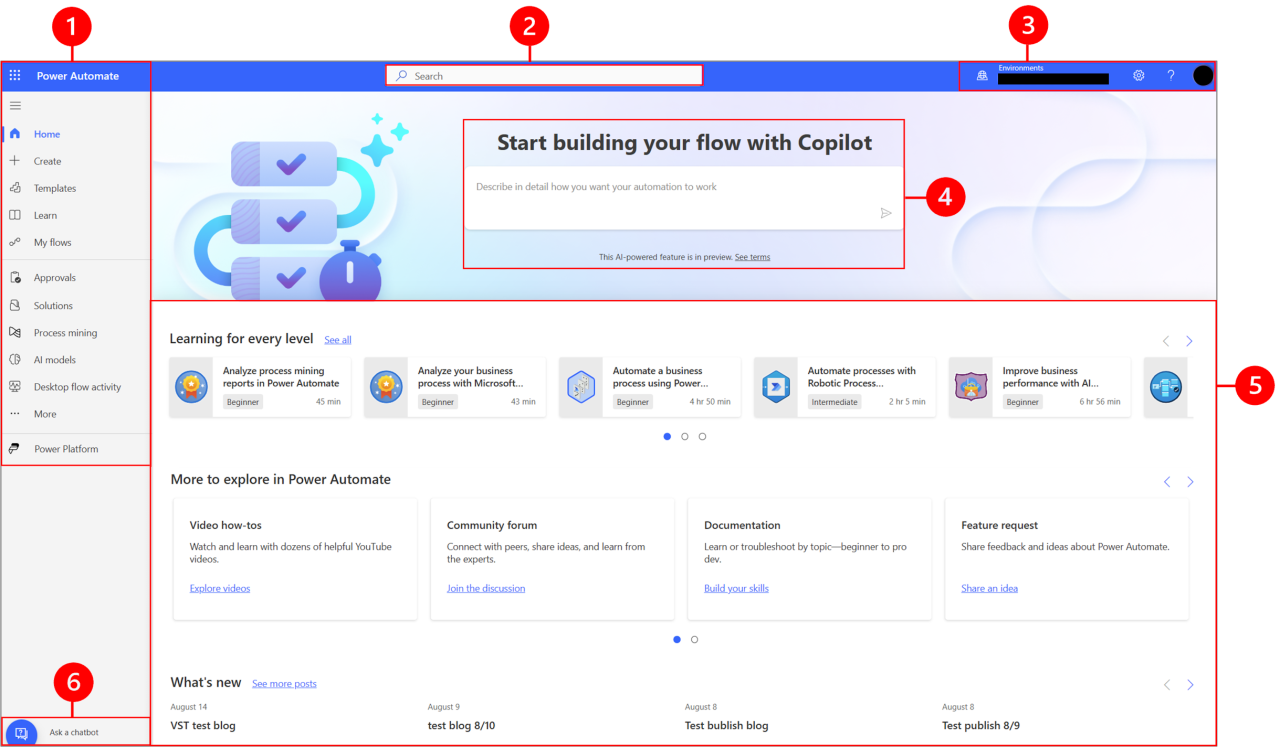
Testing and debugging are critical steps in the script development lifecycle, ensuring that your automated task functions as expected and handles various situations gracefully. Thorough testing identifies errors, improves reliability, and validates that the script meets the intended objectives. Effective debugging techniques help you understand and resolve any issues that arise during testing or operation.
Importance of Script Testing
Testing verifies that the script behaves correctly under various conditions. It’s not just about making sure the script runs; it’s about confirming that it handles different inputs, edge cases, and potential errors in a predictable and controlled manner. Rigorous testing leads to more robust and reliable automation. Without proper testing, the script may produce incorrect results, fail unexpectedly, or cause unintended consequences.
Testing Scenarios Checklist
A comprehensive testing strategy involves considering various scenarios and edge cases. This checklist provides a framework for evaluating your script’s performance.
- Normal Operation: Verify that the script functions as designed with typical inputs. This includes testing the script with valid data and expected conditions.
- Invalid Input: Test the script with incorrect or unexpected inputs to see how it handles errors. This might include incorrect data types, missing values, or data outside of the expected range.
- Edge Cases: Evaluate the script’s behavior at the boundaries of the expected input ranges. For example, if the script processes numbers, test with the minimum and maximum allowed values.
- Error Handling: Confirm that the script handles errors gracefully, such as network connection failures, file not found errors, or permissions issues. The script should log errors and provide informative messages.
- Concurrency: If the script is designed to handle multiple tasks simultaneously, test its performance under concurrent load. This helps identify potential race conditions or performance bottlenecks.
- Performance: Measure the script’s execution time and resource usage (CPU, memory). Optimize the script if necessary to improve performance.
- Security: If the script interacts with sensitive data or systems, test its security measures to prevent unauthorized access or data breaches.
- Integration: If the script interacts with other systems or applications, test the integration to ensure compatibility and data exchange.
Debugging Techniques
Debugging involves identifying and resolving errors in your script. Here are common debugging techniques:
- Print Statements/Logging: Inserting print statements (or logging) at strategic points in your code to display the values of variables, the flow of execution, and the status of operations. This allows you to trace the script’s behavior and pinpoint the source of errors.
- Using a Debugger: A debugger is a tool that allows you to step through your code line by line, inspect variables, and set breakpoints. This helps you understand the script’s execution flow and identify the exact location of errors. Most scripting languages have built-in debuggers or support integration with external debuggers.
- Error Messages: Carefully read and understand error messages. They often provide valuable information about the cause of the error, such as the line number, the type of error, and a description of the problem.
- Code Reviews: Having another person review your code can help identify errors and potential issues that you might have missed. A fresh pair of eyes can often spot mistakes that are difficult to see when you’re closely involved in the development process.
- Rubber Duck Debugging: Explain your code, line by line, to an inanimate object (like a rubber duck). The act of explaining the code forces you to think through the logic and can help you identify errors.
- Isolate the Problem: If you encounter an error, try to isolate the problem by commenting out sections of code or simplifying the script to identify the specific lines or blocks of code that are causing the issue.
- Reproduce the Error: Try to reproduce the error consistently. If you can reproduce the error, it becomes easier to debug and fix. Note the steps that lead to the error and the conditions under which it occurs.
- Version Control: Use version control (e.g., Git) to track changes to your code. This allows you to revert to previous versions if you introduce errors that you can’t easily fix. It also makes it easier to collaborate with others.
Scheduling and Execution
Now that your script is written, tested, and ready to go, the next crucial step is automating its execution. This involves setting up your script to run automatically at specified times or intervals, ensuring your task automation runs smoothly without manual intervention. This section details how to schedule your script and monitor its execution.
Scheduling Script Execution
Automating script execution relies heavily on system schedulers, tools built into your operating system designed for running tasks at specific times or intervals. These schedulers provide the infrastructure to trigger your script, making your automation truly hands-off. The specifics of scheduling depend on your operating system; the principles remain consistent.
For Linux/Unix-like systems, `cron` is the go-to scheduler. Windows utilizes the Task Scheduler.
- Cron (Linux/Unix): Cron uses a “crontab” (cron table) file to store scheduled tasks. Each line in the crontab defines a command to be executed, along with the schedule. The scheduling format uses five time/date fields: minute (0-59), hour (0-23), day of the month (1-31), month (1-12), and day of the week (0-7, 0 or 7 is Sunday). The sixth field specifies the command to execute.
- Task Scheduler (Windows): The Task Scheduler provides a graphical user interface (GUI) for creating and managing scheduled tasks. You can specify triggers (e.g., time-based, event-based), actions (e.g., running your script), and conditions (e.g., network availability).
Let’s look at examples for each:
- Cron Example: To run a Python script named `my_script.py` located in your home directory every day at 3:30 AM, you’d add a line to your crontab. First, open the crontab for editing using the command:
`crontab -e`
Then, add the following line (replace `/usr/bin/python3` with the correct path to your Python interpreter if needed):
`30 3
–
–
– /usr/bin/python3 /home/your_username/my_script.py`This entry tells cron to execute the specified command at 3:30 AM every day.
- Task Scheduler Example (Windows):
- Open Task Scheduler: Search for “Task Scheduler” in the Start menu and open it.
- Create a Basic Task: In the right-hand pane, click “Create Basic Task.”
- Name and Description: Provide a name and description for your task.
- Trigger: Select a trigger (e.g., “Daily”).
- Schedule: Set the start time and frequency (e.g., every day at a specific time).
- Action: Select “Start a program.”
- Program/script: Browse to the location of your script (e.g., `C:\Python39\python.exe`). In the “Add arguments” field, specify the path to your Python script (e.g., `C:\Users\YourName\Documents\my_script.py`).
- Finish: Review the settings and click “Finish.”
Monitoring Script Execution and Handling Issues
Monitoring your script’s execution is critical to ensure your automation works as expected. Regular monitoring helps you identify and resolve issues promptly. This can involve checking logs, receiving notifications, and implementing error handling within your script.
- Logging: Implement logging within your script to record events, errors, and any relevant information. Python’s `logging` module is a powerful tool for this. Log files can provide valuable insights into script behavior and help you diagnose problems. Consider logging timestamps, status messages, and any relevant data. Configure log rotation to prevent log files from growing indefinitely.
- Error Handling: Implement robust error handling within your script. Use `try…except` blocks to catch potential exceptions and prevent your script from crashing. Log error messages with detailed information, including the time, error type, and any relevant context. This allows you to quickly identify and resolve issues.
- Notifications: Set up notifications to alert you to critical events, such as script failures or unusual behavior. You can use email notifications, messaging services (e.g., Slack, Telegram), or other notification systems. These notifications can be triggered by specific error conditions or by the script’s overall status.
- Log Analysis: Regularly review your logs to identify any recurring issues or patterns. Tools like `grep` (on Linux/Unix) or the Task Scheduler’s history (on Windows) can help you analyze log files and detect anomalies. Automated log analysis can be implemented using scripting languages or dedicated log analysis tools.
For instance, consider a scenario where your script automates file downloads. You could implement the following:
- Log the start and end of each download.
- Log the size of the downloaded file.
- Use `try…except` blocks to catch network errors or file access issues.
- Send an email notification if a download fails.
By integrating these monitoring and issue-handling strategies, you can ensure your automated tasks are reliable and maintainable.
Concluding Remarks
In conclusion, “How to Automate a Simple Task with a Script” has equipped you with the knowledge and tools to conquer the mundane. From selecting the right language to scheduling your script, you’ve learned to streamline your workflow. Embrace the power of automation and unlock a new level of productivity. Go forth and script!