Choosing the right code editor is like selecting the perfect tool for a craftsman. It’s a crucial decision that significantly impacts your productivity and overall developer experience. Whether you’re a seasoned coder or just starting your journey, the right editor can streamline your workflow, making coding more efficient and enjoyable. This guide will walk you through a comparison of two popular choices: VS Code and Sublime Text.
We’ll explore their features, performance, customization options, and community support to help you make an informed decision. We’ll delve into their strengths and weaknesses, considering factors like language support, debugging capabilities, and version control integration. Ultimately, we aim to equip you with the knowledge to choose the code editor that best fits your needs and coding style, leading to a more productive and satisfying development experience.
Introduction: The Importance of a Code Editor
Choosing the right code editor is a crucial first step for any aspiring or experienced software developer. It’s the primary tool used to write, edit, and manage code, directly impacting a developer’s efficiency and overall coding experience. A well-chosen editor can significantly streamline the development process, making it faster, more enjoyable, and less prone to errors.The code editor is the central hub for a developer’s daily workflow.
It’s where code is written, debugged, and tested. Developers spend countless hours interacting with their code editors, so the choice significantly affects productivity. Selecting the right one is an investment in time saved, fewer headaches, and a more enjoyable coding experience.
Core Functions of a Code Editor
A code editor’s core functions facilitate the creation, modification, and maintenance of software code. These functions are essential for a smooth and efficient development process.
- Code Writing and Editing: This includes syntax highlighting, auto-completion, and intelligent suggestions to help developers write code more quickly and accurately. For example, when typing `console.log(`, a good editor will automatically suggest the closing parenthesis and quote marks.
- Code Navigation: Code editors provide features like “go to definition,” “find all references,” and “code folding” to help developers easily navigate through large codebases. Imagine having a function called `calculateTotal()`. Code navigation allows you to quickly jump to where `calculateTotal()` is defined or find all the places it’s used in your project.
- Debugging: Many code editors integrate debuggers, allowing developers to step through code, inspect variables, and identify errors. Debugging is crucial for identifying and fixing bugs.
- Version Control Integration: Code editors often integrate with version control systems like Git, making it easier to commit, push, pull, and manage code changes. This integration simplifies the process of collaborating with other developers.
Impact on Productivity and Developer Experience
The choice of code editor has a significant impact on both productivity and the overall developer experience. Features like auto-completion, syntax highlighting, and debugging tools contribute to faster coding and fewer errors.
- Increased Efficiency: Features like code completion, snippets, and keyboard shortcuts can significantly speed up the coding process. Auto-completion, for example, can save a developer considerable time by suggesting and completing code fragments.
- Reduced Errors: Syntax highlighting and real-time error checking help developers catch errors early, reducing the time spent debugging. The editor will highlight syntax errors as you type, preventing you from having to run the code to find them.
- Improved Code Quality: Code formatting and linting tools, often integrated into code editors, enforce coding standards and improve code readability. Consistent formatting makes the code easier to understand and maintain.
- Enhanced Developer Satisfaction: A well-designed code editor can make coding more enjoyable, leading to increased job satisfaction and reduced burnout. A pleasant coding environment contributes to a positive developer experience.
Examples of Productivity Gains
Consider the following scenarios to illustrate the productivity gains that a good code editor can provide.
- Scenario 1: Code Completion. A developer is working on a JavaScript project. Without code completion, they would have to manually type out the full function names and variable names. With code completion, the editor suggests the names as they type, saving them significant time and effort.
- Scenario 2: Debugging. A developer is working on a Python script. A debugger integrated into their code editor allows them to step through the code line by line, inspect the values of variables, and identify the source of a bug. This is much faster than using print statements or relying solely on trial and error.
- Scenario 3: Code Navigation. A developer is working on a large Java project with multiple classes and packages. Code navigation features allow them to quickly jump to the definition of a class or method, making it easier to understand and modify the code.
Understanding VS Code

Visual Studio Code (VS Code) is a powerful and versatile code editor developed by Microsoft. It’s become incredibly popular among developers of all skill levels due to its rich feature set, extensive customization options, and excellent performance. Understanding VS Code’s capabilities is crucial for making an informed decision about which code editor best suits your needs.
Key Features of VS Code
VS Code is packed with features designed to streamline the coding process. These features contribute to its efficiency and user-friendliness. Here are some of the key built-in features:
- IntelliSense: Provides intelligent code completion, suggestions, and parameter information as you type, significantly speeding up development. IntelliSense supports various programming languages, offering context-aware suggestions based on the code you’re writing.
- Debugging: Includes a built-in debugger that allows you to step through your code, set breakpoints, inspect variables, and identify and fix errors effectively. This debugger supports numerous programming languages and debugging environments.
- Built-in Git Support: Integrates seamlessly with Git for version control, allowing you to manage your code repositories directly within the editor. You can commit changes, push and pull from remote repositories, and resolve merge conflicts without leaving VS Code.
- Customization: Offers extensive customization options, including themes, keyboard shortcuts, and settings, allowing you to personalize the editor to your preferences. You can modify the appearance and behavior of VS Code to match your workflow.
- Integrated Terminal: Provides a built-in terminal that allows you to execute commands and interact with your operating system directly from the editor. This simplifies tasks such as running scripts, managing files, and using command-line tools.
- Code Formatting: Includes built-in code formatting tools that automatically format your code according to predefined or custom style guidelines, ensuring consistency and readability. These formatters often support multiple programming languages.
- Multi-Language Support: VS Code provides built-in support for many popular programming languages, including JavaScript, TypeScript, Python, C++, Java, and others, with syntax highlighting, code completion, and other language-specific features.
- Split View: Allows you to split the editor window into multiple panes, enabling you to view and edit multiple files or sections of code simultaneously. This is helpful when working on complex projects or comparing different parts of your code.
- Search and Replace: Offers powerful search and replace functionality, including support for regular expressions, allowing you to quickly find and modify text within your code. This is valuable for refactoring code and making global changes.
VS Code’s Extension Marketplace
The VS Code Extension Marketplace is a key strength of the editor. It allows you to extend the functionality of VS Code with a vast array of extensions created by the community and Microsoft. These extensions can add support for new languages, improve existing features, and integrate with other tools.
The marketplace is accessible directly from within VS Code. You can search for extensions by name, category, or . Once you find an extension you want to install, you can simply click the “Install” button. VS Code will automatically download and install the extension, and often requires a reload of the editor to activate it.
Here are some examples of how extensions enhance functionality:
- Language Support: Extensions provide advanced features for specific programming languages, such as linting, debugging, and code formatting. For example, the Python extension offers support for Python development, including features like code completion, debugging, and testing.
- Framework Support: Extensions add support for specific frameworks and libraries, such as React, Angular, and Vue.js, including snippets, code completion, and debugging tools.
- Theme and Icon Packs: Extensions let you customize the appearance of VS Code with themes and icon packs. These allow you to personalize the editor to your aesthetic preferences.
- Productivity Tools: Extensions improve productivity, such as code snippets, auto-import, and live share. For instance, the “Live Share” extension allows developers to collaborate in real-time, sharing code, and debugging sessions.
- Git Integration: Extensions provide more advanced Git integration features, such as GitLens, which provides detailed information about code authorship and changes.
The availability of these extensions makes VS Code a highly adaptable editor, capable of being tailored to a wide range of development needs and preferences.
Exploring Sublime Text
Sublime Text is a powerful and versatile code editor, known for its speed, elegance, and extensive customization options. It has been a favorite among developers for years, offering a streamlined experience and a wealth of features designed to boost productivity. We will delve into its core functionalities, explore its package management system, and compare its features with those of Visual Studio Code.
Sublime Text’s Core Features
Sublime Text shines in its speed and performance, making it a joy to use even on less powerful hardware. Its lightweight nature allows for rapid startup times and efficient handling of large files. Beyond speed, it offers a comprehensive set of features designed to streamline the coding process.
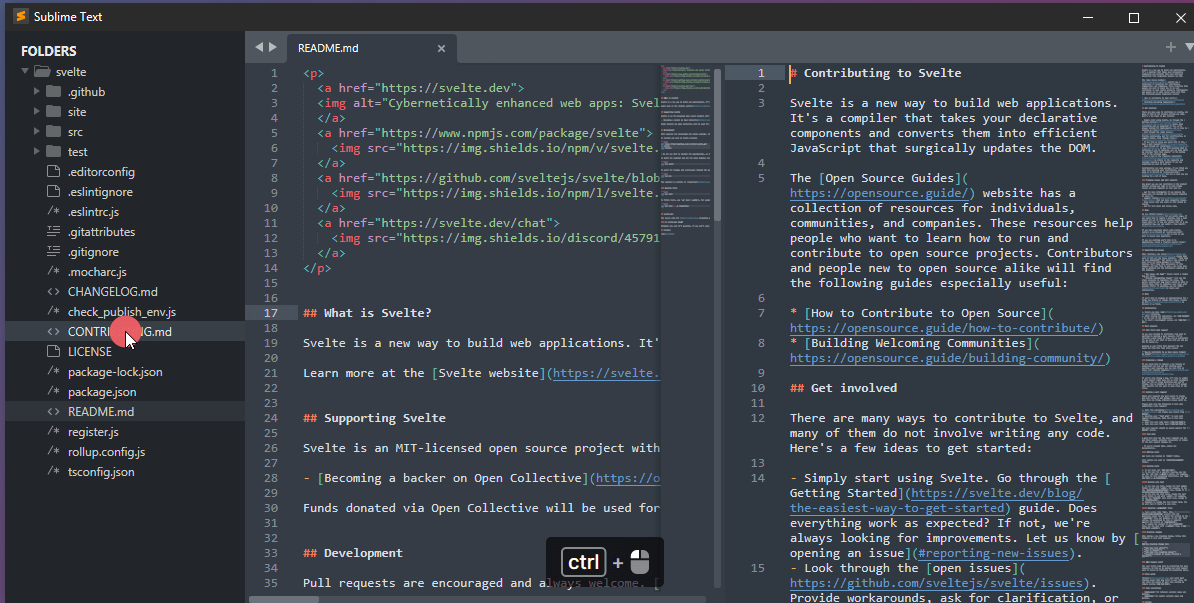
- Multiple Selections: Sublime Text’s multiple selection feature is a standout. You can select and edit multiple instances of text simultaneously, saving significant time when making repetitive changes. This is especially useful for tasks like renaming variables or modifying code blocks across a file.
- Command Palette: The Command Palette (accessed with Ctrl+Shift+P or Cmd+Shift+P) is a central hub for accessing commands, settings, and project files. It allows you to quickly find and execute actions without navigating through menus. This significantly improves efficiency and reduces the need to memorize keyboard shortcuts.
- Go to Anything: This feature allows you to quickly navigate to any file, symbol, or line number within your project. It uses fuzzy matching, so you can type a partial filename or symbol name and Sublime Text will intelligently find the correct match.
- Split Editing: Sublime Text supports split editing, enabling you to view and edit multiple files or different sections of the same file side-by-side. This is incredibly helpful for comparing code, working on different parts of a project simultaneously, or referencing documentation while coding.
- Customization: Sublime Text offers extensive customization options, allowing you to tailor the editor to your exact preferences. You can modify themes, keybindings, syntax highlighting, and more. This level of customization allows you to create a coding environment that perfectly suits your workflow.
Sublime Text’s Package Management System
Sublime Text’s package management system, primarily through Package Control, is a cornerstone of its extensibility. It allows users to easily install, manage, and update a vast library of packages that add new features, enhance existing ones, and integrate with other tools.
- Package Control: Package Control is the primary package manager for Sublime Text. It’s easy to install and provides a simple interface for browsing, installing, and managing packages. It simplifies the process of adding functionality to Sublime Text.
- Extensive Package Library: The Package Control ecosystem boasts a huge library of packages covering a wide range of functionalities. These include language-specific support (e.g., Python, JavaScript, PHP), code completion, linters, themes, and much more. This broad availability of packages allows users to customize their Sublime Text experience to fit their specific needs.
- Easy Installation and Updates: Installing a package is typically as simple as searching for it within Package Control and clicking install. Package Control also handles automatic updates, ensuring you have the latest versions of your installed packages. This streamlined process makes it easy to keep your editor up-to-date and equipped with the latest features.
- Customization and Integration: Packages in Sublime Text often integrate seamlessly with the editor’s core functionality. They can add new commands to the Command Palette, provide syntax highlighting, offer code completion suggestions, and more. This level of integration makes packages feel like a natural extension of the editor.
Feature Comparison: Sublime Text vs. VS Code
This table provides a direct comparison of key features between Sublime Text and Visual Studio Code, allowing for a quick assessment of their strengths and weaknesses.
| Feature | Sublime Text | Visual Studio Code | Notes |
|---|---|---|---|
| Speed & Performance | Excellent; very fast startup and responsiveness. | Good; generally fast, but can be slower with large projects or many extensions. | Sublime Text often excels in raw speed due to its lightweight nature. |
| Package Management | Package Control; extensive library of packages. | Built-in Extension Marketplace; huge library, managed through the IDE. | Both have robust package management systems, with large communities contributing to their respective marketplaces. |
| Customization | Highly customizable; themes, keybindings, and settings can be extensively modified. | Highly customizable; themes, keybindings, and settings can be extensively modified. | Both offer significant customization options, allowing users to tailor the editor to their preferences. |
| Built-in Features | Multiple selections, Command Palette, Go to Anything, Split Editing. | Integrated terminal, debugging, Git integration, IntelliSense, built-in language support. | VS Code offers more built-in features, especially in terms of integrated tools. |
Core Differences
Choosing between VS Code and Sublime Text often boils down to understanding their core differences. These differences influence your daily workflow and overall satisfaction with your code editor. Let’s dive into the key distinctions to help you make the best choice.
User Interface and User Experience
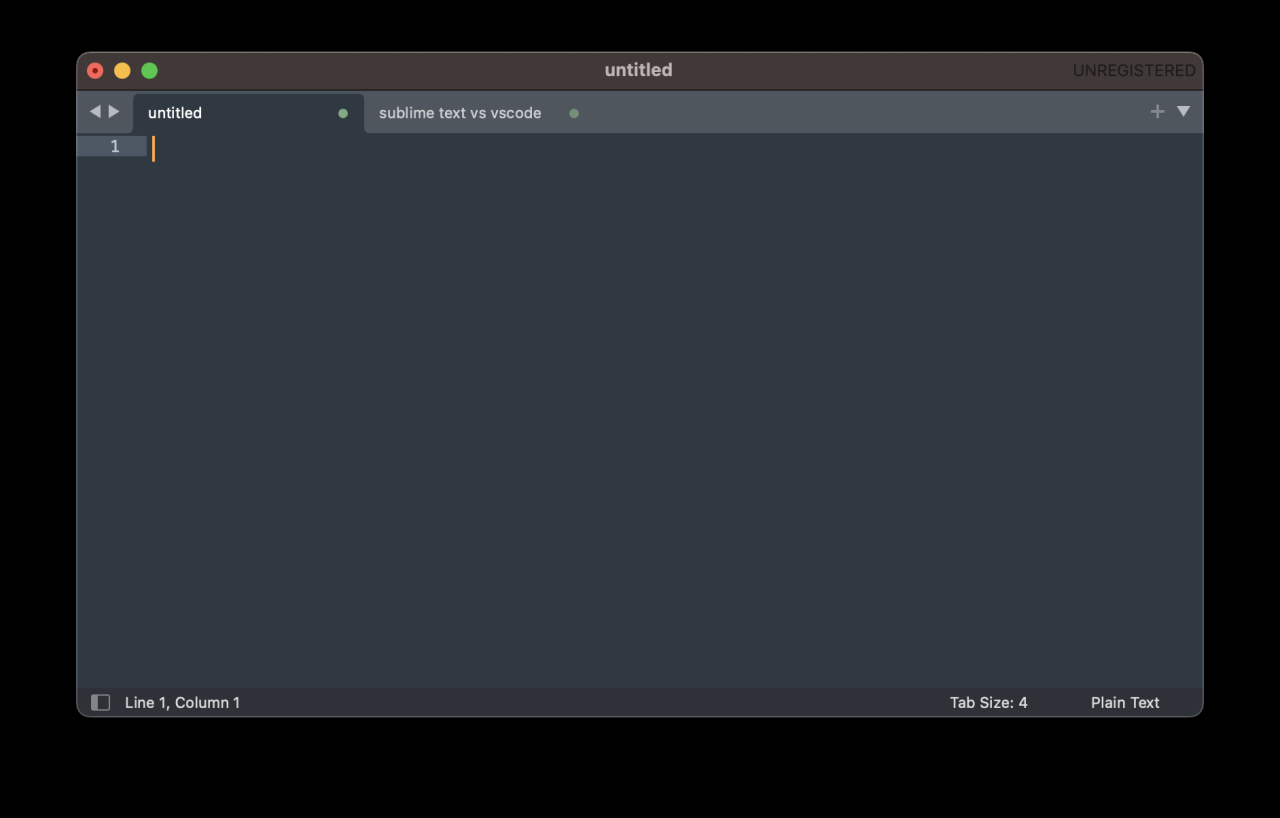
The user interface and user experience (UI/UX) of a code editor play a crucial role in developer productivity. A clean, intuitive interface can significantly improve workflow efficiency, while a cluttered or confusing one can hinder it.Sublime Text offers a minimalistic and streamlined UI. Its design prioritizes a distraction-free coding environment. Key features of its UI/UX include:
- Clean and Uncluttered: Sublime Text’s interface is designed to stay out of your way, allowing you to focus on the code.
- Mini-Map: The mini-map provides a bird’s-eye view of your code, making navigation through large files easier.
- Command Palette: Accessible via
Ctrl+Shift+P(Windows/Linux) orCmd+Shift+P(macOS), the command palette provides quick access to commands, settings, and other features. - Customization: Extensive customization options, including themes and color schemes, allow you to personalize the editor’s appearance.
VS Code, on the other hand, provides a more feature-rich and integrated UI. It aims to provide a comprehensive coding environment with built-in features and extensions. Key features of its UI/UX include:
- Integrated Terminal: The built-in terminal allows you to run commands directly within the editor.
- Activity Bar: Located on the side, the activity bar provides quick access to different views, such as Explorer, Search, Source Control, and Extensions.
- Explorer Panel: A dedicated panel for navigating your project files and folders.
- Extensions Marketplace: Easily discover and install extensions directly from the editor.
Illustration: Imagine two desktops. One is minimalist, with only essential applications visible, representing Sublime Text. The other has a well-organized set of tools and windows open, representing VS Code’s more integrated approach.
Performance and Resource Consumption
Performance and resource consumption are critical factors, especially when working with large projects or on less powerful machines. The responsiveness of the editor and its impact on system resources can significantly affect your coding experience.Sublime Text is generally known for its fast startup times and efficient resource usage. Its performance is a key selling point for many developers. Key aspects of its performance include:
- Fast Startup: Sublime Text starts up quickly, allowing you to begin coding almost instantly.
- Low Resource Usage: It consumes relatively few system resources, making it suitable for older or less powerful hardware.
- Responsiveness: The editor remains responsive even when handling large files or projects.
VS Code, while powerful, can sometimes be more resource-intensive, particularly with numerous extensions installed. Its performance depends heavily on the installed extensions and the size of the project. Key aspects of its performance include:
- Slower Startup (potentially): VS Code may take longer to start, especially with many extensions enabled.
- Higher Resource Usage: It tends to consume more RAM and CPU resources compared to Sublime Text.
- Performance Impact of Extensions: The performance of VS Code can be significantly impacted by the extensions you install. Some extensions may slow down the editor.
Real-World Example: A developer working on a large JavaScript project with multiple dependencies might find that Sublime Text offers a smoother experience due to its faster performance, whereas VS Code, with several extensions installed, might experience slowdowns.
Community Support and Documentation
Strong community support and comprehensive documentation are essential for any code editor. They provide resources for troubleshooting issues, learning new features, and staying up-to-date with the latest developments.Sublime Text benefits from a dedicated and active community. Its documentation and support resources include:
- Active Community Forums: Online forums and communities where users share tips, plugins, and solutions.
- Extensive Documentation: Comprehensive documentation covering features, settings, and customization options.
- Plugin Ecosystem: A vast library of plugins created by the community, extending the editor’s functionality.
VS Code boasts a massive and vibrant community, supported by Microsoft and a global user base. Its documentation and support resources include:
- Official Documentation: Extensive documentation provided by Microsoft, covering all aspects of the editor.
- Large Community Forums: Active forums and Q&A platforms where users can seek help and share knowledge.
- Extensive Extension Marketplace: A vast marketplace with thousands of extensions, developed and maintained by the community.
- Regular Updates and Support: VS Code receives frequent updates and ongoing support from Microsoft.
Illustration: Imagine a large online forum with thousands of threads and posts, representing the extensive community support available for VS Code. Beside, there is a smaller, but equally active forum for Sublime Text.
Customization and Extensibility
A key aspect of any code editor is its ability to adapt to your specific workflow and preferences. Both VS Code and Sublime Text offer extensive customization and extensibility options, allowing you to tailor the editor to your needs. This flexibility can significantly improve your productivity and coding experience.
Customization in VS Code
VS Code provides a rich set of customization options, allowing you to modify the editor’s appearance and behavior. These options are primarily managed through settings and themes.
- Themes: VS Code offers a wide variety of themes, both light and dark, to change the editor’s color scheme and overall look. You can choose from built-in themes or install themes from the VS Code Marketplace. These themes affect the syntax highlighting, UI elements, and overall visual appearance.
- Settings: VS Code’s settings allow you to control numerous aspects of the editor, including font size, indentation, auto-completion, and more. Settings can be configured globally (affecting all projects) or per-project, providing granular control. The settings are typically managed through a `settings.json` file.
- Keybindings: You can customize keyboard shortcuts to match your preferred workflow. VS Code allows you to modify existing keybindings or create new ones, enabling you to trigger commands quickly and efficiently. Keybindings are also managed through a `keybindings.json` file.
Extending Sublime Text
Sublime Text’s functionality can be significantly extended through packages and plugins. These extensions add new features and integrations, transforming the editor into a more powerful and versatile tool.
- Packages: Sublime Text uses packages to add features. These packages are collections of files that extend the editor’s functionality. You can install packages through the Package Control, a package manager for Sublime Text. Package Control simplifies the process of finding, installing, and managing packages.
- Plugins: Plugins are the core of Sublime Text’s extensibility. They are written in Python and provide a way to customize the editor’s behavior. Plugins can add new commands, modify existing ones, and integrate with external tools and services.
- Package Control: Package Control is the de facto package manager for Sublime Text. It simplifies the installation and management of packages. You can browse and install packages directly from the editor.
Comparison Table: Customization Options
The following table provides a comparison of the customization options available in VS Code and Sublime Text.
| Feature | VS Code | Sublime Text | Description |
|---|---|---|---|
| Themes | Extensive selection available through the Marketplace. | Large community-driven theme selection, installable via Package Control. | Both editors provide a wide range of themes to customize the visual appearance. VS Code has a more integrated marketplace. |
| Settings/Preferences | Configured via `settings.json` (global and per-project). | Configured via settings files and user preferences. | Both offer comprehensive settings for controlling editor behavior, including font sizes, indentation, and more. VS Code’s settings are managed via JSON files. |
| Extensibility | Extensions available through the Marketplace. | Packages and Plugins installed via Package Control. | Both editors are highly extensible. VS Code uses extensions, and Sublime Text uses packages and plugins. Package Control simplifies package management in Sublime Text. |
| Keybindings | Customizable via `keybindings.json`. | Customizable through keymap files. | Allows for modification or creation of custom keyboard shortcuts. Both editors offer robust keybinding customization. |
Language Support and Syntax Highlighting
Choosing a code editor involves considering its ability to understand and display different programming languages. Robust language support and effective syntax highlighting are crucial for writing, reading, and debugging code efficiently. Both VS Code and Sublime Text excel in these areas, but they approach language support with different philosophies.
Built-in Language Support in VS Code
VS Code boasts extensive built-in language support, providing immediate functionality for many popular languages. This support often includes features such as syntax highlighting, code completion (IntelliSense), and basic linting.
- VS Code’s built-in support covers languages like JavaScript, TypeScript, HTML, CSS, JSON, and Markdown. These languages are ready to use out of the box, with syntax highlighting automatically applied as you open files.
- For other languages, VS Code relies on extensions. The marketplace offers extensions for virtually every language imaginable, from Python and Java to C++ and Go. These extensions provide language-specific features, enhancing the development experience.
- The extension ecosystem allows for rapid updates and improvements to language support, ensuring that VS Code stays up-to-date with the latest language features and standards. For instance, the Python extension, maintained by Microsoft, offers features like debugging, code formatting, and testing support.
Built-in Language Support in Sublime Text
Sublime Text’s built-in language support is more focused on providing a solid foundation. It comes with support for a wide range of languages, but the extent of its features can be less comprehensive compared to VS Code’s out-of-the-box experience.
- Sublime Text natively supports common languages like JavaScript, HTML, CSS, and Python, offering syntax highlighting and basic features.
- Sublime Text relies heavily on packages (similar to extensions in VS Code) to extend its language support. Packages can provide advanced features like code completion, linting, and debugging.
- Package Control, Sublime Text’s package manager, makes it easy to install and manage packages for various languages. Users can find packages for languages like C++, Java, and Ruby, significantly enhancing their development experience.
- While Sublime Text’s core installation provides a more minimal feature set, the package ecosystem allows users to customize their experience to match their specific needs.
Syntax Highlighting and Readability
Syntax highlighting is a fundamental feature in any code editor. It uses colors and text styles to differentiate elements of code, such as s, variables, functions, and comments. This visual distinction dramatically improves code readability and helps developers quickly identify errors.
- Syntax highlighting is essential for understanding the structure and meaning of code. It helps developers quickly identify syntax errors and logical problems.
- The visual cues provided by syntax highlighting make it easier to scan and comprehend code, saving time and reducing the chances of making mistakes.
- Properly configured syntax highlighting helps developers quickly understand the structure and meaning of the code.
Configuring Syntax Highlighting
Both VS Code and Sublime Text allow users to customize syntax highlighting to suit their preferences and the specific needs of a project.
- VS Code: VS Code offers extensive customization options for syntax highlighting. Users can modify the color scheme (theme) through the settings or install themes from the marketplace. These themes change the colors and styles used for different code elements. Users can also configure the colors for specific elements using the `editor.tokenColorCustomizations` setting in the settings.json file.
- Sublime Text: Sublime Text also allows users to customize syntax highlighting through themes and color schemes. Users can install themes via Package Control or manually modify the `.tmTheme` files, which define the color scheme. This provides a high degree of control over the visual appearance of the code.
- The ability to customize syntax highlighting is important for developers who spend long hours working with code. Personalizing the appearance can reduce eye strain and improve the overall development experience.
- For instance, a developer working with JavaScript might choose a theme that highlights variable names in a specific color and function names in another.
Debugging Capabilities
Debugging is a critical aspect of the software development lifecycle, allowing developers to identify and resolve errors within their code. A powerful debugger can significantly reduce the time spent troubleshooting and improve the overall quality of the software. Both VS Code and Sublime Text offer debugging capabilities, but they differ in their implementation and feature sets.
VS Code Debugging Features
VS Code provides a robust and integrated debugging experience. It supports debugging a wide range of languages and runtimes, offering features like breakpoints, variable inspection, call stack analysis, and more. The integrated debugger allows developers to step through their code line by line, examine the values of variables at each step, and understand the program’s flow.To effectively debug code in VS Code, developers can utilize the following features:
- Breakpoints: Breakpoints allow developers to pause the execution of their code at specific lines. When the debugger encounters a breakpoint, it stops execution, allowing the developer to inspect the program’s state.
- Variable Inspection: While paused at a breakpoint, developers can inspect the values of variables in the current scope. This helps in understanding the data flow and identifying potential issues. VS Code displays variable values in a dedicated panel, updating them as the code is stepped through.
- Call Stack: The call stack shows the sequence of function calls that led to the current point of execution. This is useful for understanding the program’s control flow and identifying the source of errors, especially in complex applications.
- Step Controls: VS Code provides step controls (Step Over, Step Into, Step Out) that allow developers to navigate through the code execution. “Step Over” executes the next line of code, “Step Into” enters a function call, and “Step Out” exits the current function.
- Conditional Breakpoints: These allow developers to set breakpoints that are only triggered when a specific condition is met, offering a more refined debugging experience.
Debugging a Simple Program in VS Code: Step-by-Step Procedure
Debugging a simple program in VS Code involves a straightforward process. This example demonstrates debugging a simple Python script.
- Open the Program: Open the Python script (e.g., `my_program.py`) in VS Code.
- Set a Breakpoint: Click in the gutter (the area to the left of the line numbers) to set a breakpoint on a line where you want to pause execution. For example, click on the line `result = a + b`. A red circle will appear, indicating the breakpoint.
- Configure the Debugger: If you haven’t already, configure the debugger for Python. Click the “Run and Debug” icon in the Activity Bar (the icon that looks like a bug). VS Code might prompt you to select a configuration; choose “Python File” if you’re debugging a single Python script. If you have multiple files or require specific launch configurations, create a `launch.json` file to customize the debugger settings.
- Start Debugging: Click the “Run and Debug” button (the green play button) or press F5 to start the debugger. The program will run until it hits the breakpoint.
- Inspect Variables: Once the program pauses at the breakpoint, observe the “Variables” panel in the sidebar. This panel displays the values of the variables in the current scope.
- Step Through the Code: Use the step controls (Step Over, Step Into, Step Out) in the debug toolbar to navigate through the code line by line. Observe how the variable values change as you step through the code.
- Continue Execution: To continue execution to the next breakpoint or the end of the program, click the “Continue” button (the play button with a small arrow).
- Stop Debugging: When you’re finished debugging, click the “Stop” button (the square button) in the debug toolbar to terminate the debugging session.
Debugging in Sublime Text with Plugins
Sublime Text, unlike VS Code, does not have a built-in debugger. Debugging in Sublime Text relies on the use of plugins, which provide the necessary functionality. These plugins integrate with external debuggers specific to the programming language being used.To debug code in Sublime Text, the process typically involves:
- Installing a Debugging Plugin: The first step is to install a plugin that supports debugging for the programming language you’re using. Popular choices include:
- For Python: The “SublimeLinter” plugin with the “SublimeLinter-flake8” or “SublimeLinter-pylint” plugins for linting, which can help identify potential errors before runtime.
- For JavaScript: Plugins that integrate with Node.js debuggers or browser debuggers (like those for Chrome or Firefox).
- For other languages: Plugins that integrate with language-specific debuggers (e.g., GDB for C/C++).
- Configuring the Plugin: After installation, configure the plugin to work with your project. This often involves setting up paths to the interpreter or debugger and configuring build systems or launch configurations.
- Setting Breakpoints: Similar to VS Code, you’ll set breakpoints in your code. The method for setting breakpoints varies depending on the plugin.
- Starting the Debugger: You’ll start the debugger through a command or menu option provided by the plugin.
- Debugging and Inspection: Once the debugger is running, you can step through your code, inspect variables, and examine the call stack. The debugging experience is often less integrated compared to VS Code, relying on external windows or panels for variable inspection and debugging information.
Version Control Integration
Version control is a crucial aspect of modern software development, allowing developers to track changes, collaborate effectively, and revert to previous states of their code. Both VS Code and Sublime Text offer integration with version control systems, primarily Git, providing features to manage code repositories directly from within the editor. Understanding how these editors handle version control is essential for efficient development workflows.
VS Code’s Git Integration
VS Code offers robust, built-in Git integration, making it a powerful tool for managing Git repositories. This integration streamlines the process of version control, allowing developers to perform common Git operations without leaving the editor.
- Built-in Git Support: VS Code has Git support built directly into the editor, meaning no separate extensions are needed for basic Git functionality.
- Visual Indicators: The editor provides visual cues to indicate the status of files within a Git repository. Changes, additions, and deletions are highlighted in the editor’s sidebar and within the code itself, using different colors and symbols.
- Staging and Committing: VS Code makes it easy to stage and commit changes. Developers can stage individual files or all changes at once, and then write commit messages directly within the editor.
- Branch Management: VS Code allows users to create, switch, and manage branches. It provides a clear view of the current branch and allows for easy switching between branches.
- Pull, Push, and Sync: The editor includes commands for pulling changes from remote repositories, pushing local commits, and synchronizing the local branch with the remote branch.
- Conflict Resolution: VS Code helps resolve merge conflicts by highlighting conflicting sections of code and providing tools to choose which changes to keep or merge.
- Git Graph View: VS Code provides a visual graph representation of the commit history, making it easier to understand the evolution of the project and identify specific commits.
Here’s a simplified representation of the Git workflow within VS Code:
1. Local Changes: Developer makes changes to files.
2. Staging: Files are staged for commit (marked for inclusion in the next commit).
3. Committing: Changes are committed with a descriptive message, creating a new commit in the local repository.
4. Pushing: Commits are pushed to the remote repository (e.g., GitHub, GitLab, Bitbucket).
5. Pulling: Developer pulls changes from the remote repository to update the local repository.
6. Branching: Developer creates and switches between branches for feature development or bug fixes.
7. Merging: Branches are merged to integrate changes into the main branch.
8. Conflict Resolution: If merge conflicts occur, they are resolved.
Sublime Text’s Version Control Integration Options
Sublime Text, while not offering built-in Git integration like VS Code, provides various options for integrating with version control systems. Developers typically rely on plugins to add Git functionality.
- Package Control: Sublime Text’s package manager, Package Control, allows easy installation of Git-related plugins.
- Git Plugins: Several Git plugins are available through Package Control, such as Git, GitSavvy, and SublimeGit. These plugins add features like:
- Git Commands: Access to common Git commands (commit, push, pull, branch, etc.) via the command palette or keyboard shortcuts.
- Status Indicators: Display of file status (modified, added, deleted) in the sidebar or gutter.
- Diff View: Ability to view the differences between the current file and the last committed version.
- Commit Messages: Functionality for writing commit messages.
- Branch Management: Support for creating, switching, and managing branches.
- Terminal Integration: Developers can also use the built-in terminal or an external terminal to execute Git commands.
- Customization: The functionality of Git plugins can be customized to suit individual preferences and project requirements.
Pricing and Licensing
Understanding the cost and licensing of your code editor is crucial. This determines not only the upfront expense but also the long-term implications for usage, distribution, and potential modifications. Choosing the right licensing model ensures you’re compliant and that the editor aligns with your project’s needs, whether you’re working on personal projects or within a commercial environment.
Pricing Models and Licensing for VS Code and Sublime Text
VS Code and Sublime Text employ distinct pricing and licensing strategies. VS Code embraces a fully open-source model, while Sublime Text operates on a proprietary, shareware basis.
- Visual Studio Code (VS Code): VS Code is completely free and open-source, licensed under the MIT License. This means:
- You can use it for any purpose, including commercial projects, without paying any fees.
- You can modify the source code and distribute your modified versions (though you must retain the original license).
- There are no restrictions on the number of users or devices.
- Sublime Text: Sublime Text follows a “try before you buy” model, meaning:
- You can download and use it for an unlimited time.
- There is no time limit, but you will be prompted to purchase a license periodically.
- The license is a perpetual license, meaning you own it for life, but it includes updates for a specific period (e.g., Sublime Text 3 licenses did not include updates for Sublime Text 4 without a new purchase).
- The license is tied to a single user, not a specific device.
Benefits of Open-Source vs. Proprietary Software
The choice between open-source and proprietary software in the context of code editors carries significant implications.
- Open-Source (VS Code):
- Cost: Free of charge.
- Transparency: The source code is available for review, allowing for security audits and community contributions.
- Community: Strong community support and a vast ecosystem of extensions.
- Customization: Highly customizable and modifiable to suit individual needs.
- Vendor Lock-in: No vendor lock-in; you are not reliant on a single company for continued access or support.
- Proprietary (Sublime Text):
- Cost: Requires a purchase after an evaluation period.
- Support: Often provides dedicated support from the development team.
- Stability: May offer more stable and tested features, although the open-source community can provide similar benefits.
- Ease of Use: Often designed with a focus on user-friendliness.
- Updates: Regular updates, bug fixes, and new features are provided, usually for a certain period after purchase.
Comparing Pricing and Licensing Models
A direct comparison of the pricing and licensing models of VS Code and Sublime Text can be summarized in a table.
| Feature | Visual Studio Code (VS Code) | Sublime Text |
|---|---|---|
| Pricing | Free | “Try before you buy” (Paid License) |
| License Type | MIT License (Open Source) | Proprietary (Shareware) |
| Cost for Commercial Use | Free | Requires a license for commercial use. |
| Updates | Free and continuous, driven by the community and Microsoft. | Free updates for a period after purchase; requires a new license for major version upgrades. |
User Preferences and Use Cases
Choosing the right code editor often comes down to personal preference and the specific needs of a project. Both VS Code and Sublime Text offer robust features, but their strengths align differently with various developer profiles and project types. Understanding these nuances can significantly boost your productivity and enjoyment of the coding process.
Ideal Developers and Projects for Each Editor
Different types of developers and projects benefit from different features. Let’s explore the strengths of each editor in various scenarios.VS Code is often the preferred choice for:* Developers working on large, complex projects with diverse technologies.
- Teams that require strong collaboration features and integrated version control.
- Individuals who appreciate a feature-rich, customizable environment with extensive extension support.
- Projects where integrated debugging tools and built-in terminals are essential.
- Developers comfortable with a more resource-intensive editor.
Sublime Text shines in the following scenarios:* Developers who prioritize speed, responsiveness, and a lightweight experience.
- Individuals who prefer a clean, uncluttered interface.
- Projects where quick file navigation and editing are paramount.
- Developers who appreciate a highly customizable editor through packages and settings files.
- Those who prefer a more focused and less resource-intensive environment, especially on older hardware.
Scenarios Where Each Editor Excels
The best choice depends on the specific project requirements. Here are some illustrative examples:* VS Code excels in: Developing a full-stack web application with JavaScript (React, Angular, or Vue.js), Node.js, and a backend framework. VS Code’s extensive extension library provides excellent support for these technologies, including intelligent code completion, linting, and debugging. Its built-in Git integration simplifies version control tasks.
Working on a project with multiple contributors. VS Code’s live share feature allows for real-time collaborative coding sessions, making it easy to share code, debug, and discuss solutions with team members. Developing Python applications. VS Code offers excellent Python support with features like IntelliSense, debugging, and testing integration through extensions.* Sublime Text excels in: Quickly editing configuration files or small scripts.
Sublime Text’s fast startup time and excellent search and replace capabilities make it ideal for these tasks. Rapid prototyping and experimentation. Its speed allows developers to iterate quickly and try out different code snippets without the overhead of a larger IDE. Working on legacy codebases. Sublime Text’s ability to handle large files efficiently and its powerful search functionality are invaluable when navigating and refactoring complex code.
Common Developer Profiles and Editor Recommendations
Here’s a list of common developer profiles and the recommended editor for each, considering their typical workflows and needs:* Front-End Web Developer:
Recommendation
VS Code. Extensive extension support for HTML, CSS, JavaScript, and frameworks like React, Angular, and Vue.js, along with robust debugging tools and Git integration, makes it ideal for modern front-end development.* Back-End Web Developer (e.g., Python, Java, Ruby):
Recommendation
VS Code. Excellent language-specific extensions, debugging capabilities, and integrated terminals enhance productivity. Sublime Text is also a viable option, especially if speed and a lightweight environment are prioritized.* Mobile App Developer (e.g., React Native, Flutter):
Recommendation
VS Code. Offers excellent support through extensions for various mobile development frameworks, including debugging, emulators, and build tools.* Game Developer:
Recommendation
Depends on the engine. For engines like Unity, VS Code is often preferred due to its C# support and debugging capabilities. Sublime Text can be a good choice for scripting and quick edits.* System Administrator/DevOps Engineer:
Recommendation
Sublime Text. Its speed, efficiency, and ability to handle large configuration files make it ideal for managing servers and infrastructure.* Data Scientist:
Recommendation
VS Code. With extensions for Python, Jupyter notebooks, and data science libraries, VS Code provides a comprehensive environment for data analysis and machine learning.* Beginner Programmer:
Recommendation
VS Code. Its user-friendly interface, integrated features, and vast extension library make it an excellent choice for learning to code. The intuitive nature helps beginners quickly grasp the fundamentals.
Final Conclusion
In conclusion, the battle between VS Code and Sublime Text highlights the diverse needs of developers. While VS Code offers a feature-rich, extensible environment, Sublime Text provides speed and a minimalist approach. By understanding their core differences, from user interface to customization, you can select the editor that aligns with your specific projects and preferences.
Remember to consider factors like community support, language support, and debugging capabilities. Ultimately, the “right” code editor is the one that empowers you to write clean, efficient code and enhances your overall development workflow. Experiment with both, and choose the tool that makes you the most productive and happy coder!